Difference between revisions of "Cuteblindfold"
m |
m |
||
| Line 310: | Line 310: | ||
File:cb-preset_la-yellow.png|Latex yellow | File:cb-preset_la-yellow.png|Latex yellow | ||
</gallery> | </gallery> | ||
| + | <br><hr><br> | ||
| + | <!--=====================================================--> | ||
| + | <!--2.7.2 Select sub menu --> | ||
| + | <!--=====================================================--> | ||
| + | <h3><p style="text-align:center; color: #fe5656;font-size: 30px">2.7.2 Select sub menu</p></h3> | ||
| + | <p>If you want to texture or color a part of the ponysuit, you can do it by selecting the part you want to alter and than select what do you want to change.</p> | ||
| + | [[File:Cb-select.png|center]]<br> | ||
| + | <p><span style="color: #00ff00">❌ BACK ❌</span> – Move back to the previous menu.<br> | ||
| + | <span style="color: #00ff00">⏪</span> - Move back to the previous page.<br> | ||
| + | <span style="color: #00ff00">⏩</span> - Move forward to the next page.<br> | ||
| + | <span style="color: #00ff00">❓ HELP ❓</span> – Streams the help into the chat window.<br> | ||
| + | <span style="color: #00ff00">fab in, fab out, fab trim, pad, fab all, metal or lock </span> - Select the part to modify.<br></p> | ||
| + | <br><hr> | ||
| + | <p>When the part you want to modify is selected another menu will ask you what to do.</p> | ||
| + | [[File:Cb-action.png|center]]<br> | ||
| + | <p><span style="color: #00ff00">❌ BACK ❌</span> – Move back to the previous menu.<br> | ||
| + | <span style="color: #00ff00">❓ HELP ❓</span> – Streams the help into the chat window.<br> | ||
| + | <span style="color: #00ff00">color</span> - Sub-menu to change the color.<br> | ||
| + | <span style="color: #00ff00">material</span> - Sub-menu to change the material texture.<br> | ||
| + | <span style="color: #00ff00">rgb2PBR ✅</span> - Convert the linear RGB to sRGB colorspace for PBR faces.<br> | ||
| + | <span style="color: #00ff00">noPBR</span> - Remove the PBR material from the selected part and switch it back to leagacy.<br></p> | ||
| + | <br><hr><br> | ||
| + | <!--=====================================================--> | ||
| + | <!--2.7.2.1 Color menu --> | ||
| + | <!--=====================================================--> | ||
| + | <h4><p style="text-align:center; color: #fe5656;font-size: 30px">2.8.3.1 Color menu</p></h4> | ||
| + | <p>Select the color you want to apply on the selected part, you can also change the custom A & B color to your liking.</p> | ||
| + | <gallery mode="slideshow"> | ||
| + | Image:Cb-color1.png|page 1/4 | ||
| + | Image:Cb-color2.png|page 2/4 | ||
| + | Image:Cb-color3.png|page 3/4 | ||
| + | Image:Cb-color4.png|page 4/4 | ||
| + | </gallery> | ||
| + | <p><span style="color: #00ff00">❌ BACK ❌</span> – Move back to the previous menu.<br> | ||
| + | <span style="color: #00ff00">⏪</span> - Move back to the previous page.<br> | ||
| + | <span style="color: #00ff00">⏩</span> - Move forward to the next page.<br> | ||
| + | <span style="color: #00ff00">❓ HELP ❓</span> – Streams the help into the chat window.<br> | ||
| + | <span style="color: #00ff00">D.green, F.pink, L.red, L,yellow, P.pink, amethyst, azure, beige, black, blood, blue, copper, custom.A, custom.B, gold, gray, indigo, lblue, lime, metal, navy, orange, plum, purple, red, silver, slate, steel, white, yellow</span> – Select the color preset for the selected part.<br> | ||
| + | <span style="color: #00ff00">RGB.A, RGB.B</span> – Enter the new value for custom.A or custom.B color. Example <123/123/123><br></p> | ||
| + | <br><hr> | ||
| + | <p style="color: #ffdd33">Palette of colors:</p> | ||
| + | [[File:PFS palette color.png|center]]<br> | ||
| + | <br><hr><br> | ||
| + | <!--=====================================================--> | ||
| + | <!--2.7.2.2 Material menu --> | ||
| + | <!--=====================================================--> | ||
| + | <h4><p style="text-align:center; color: #fe5656;font-size: 30px">2.7.2.2 Material menu</p></h4> | ||
| + | <p>Select the material you want to apply on the selected part.</p> | ||
| + | <gallery mode="slideshow"> | ||
| + | Image:Cb-material1.png|page 1/1 | ||
| + | Image:Cb-material2.png|page 2/2 | ||
| + | </gallery> | ||
| + | <p><span style="color: #00ff00">❌ BACK ❌</span> – Move back to the previous menu.<br> | ||
| + | <span style="color: #00ff00">❓ HELP ❓</span> – Streams the help into the chat window.<br> | ||
| + | <span style="color: #00ff00">Le.black, Le.gray, Le.beige, Le.white, Le.blue, Le.lblue, Le.pink, Le.red or Le.yellow </span> - Select a leather material.<br> | ||
| + | <span style="color: #00ff00">La.black, La.gray, La.beige, Lea.white, La.blue, La.lblue, La.pink, La.red or La.yellow </span> - Select a latex material.<br></p> | ||
| + | <br><hr><br> | ||
| + | <!--=====================================================--> | ||
| + | <!--2.7.3 Resize menu --> | ||
| + | <!--=====================================================--> | ||
| + | <h3><p style="text-align:center; color: #fe5656;font-size: 30px">2.7.3 Resize sub menu</p></h3> | ||
| + | <p>User or keyholder can resize and adjust the bridle to have a better fitting to the head. To help you, the selected prim will be turned full bright during a time, if you don't see a prim you can switch to the hiden prim mode with ctrl+alt+T. Be aware about the orientaion of the axes (see below)</p> | ||
| + | <gallery mode="slideshow"> | ||
| + | Image:Cb-resizeselect.png|selected prim is turned bright | ||
| + | Image:cb-hide.png|show hiden prims | ||
| + | Image:cb-axes.png|blindfold's axes | ||
| + | </gallery> | ||
| + | <br><hr><br> | ||
| + | <!--=====================================================--> | ||
| + | <!--2.7.3.1 Move menu --> | ||
| + | <!--=====================================================--> | ||
| + | <h4><p style="text-align:center; color: #fe5656;font-size: 30px">2.7.3.1 Move menu</p></h4> | ||
| + | <p>You can move the selected prim with the given step.</p> | ||
| + | [[File:cb-move.png|center]]<br> | ||
| + | <p><span style="color: #00ff00">❌ BACK ❌</span> – Move back to the previous menu.<br> | ||
| + | <span style="color: #00ff00">⏪</span> - Previous prim.<br> | ||
| + | <span style="color: #00ff00">⏩</span> - Next prim.<br> | ||
| + | <span style="color: #00ff00">Y+</span> - Move the prim left.<br> | ||
| + | <span style="color: #00ff00">Z-</span> - Move the prim down.<br> | ||
| + | <span style="color: #00ff00">Y-</span> - Move the prim right.<br> | ||
| + | <span style="color: #00ff00">[move]</span> - Toggle to next menu.<br> | ||
| + | <span style="color: #00ff00">step</span> - Change move step.<br> | ||
| + | <span style="color: #00ff00">X+</span> - Move the prim front.<br> | ||
| + | <span style="color: #00ff00">Z+</span> - Move the prim up.<br> | ||
| + | <span style="color: #00ff00">X-</span> - Move the prim back.<br> | ||
| + | <br><hr><br> | ||
| + | <!--=====================================================--> | ||
| + | <!--2.7.3.2 Bigger menu --> | ||
| + | <!--=====================================================--> | ||
| + | <h4><p style="text-align:center; color: #fe5656;font-size: 30px">2.7.3.2 Bigger menu</p></h4> | ||
| + | <p>You can increase the size of the prim with the given step.</p> | ||
| + | [[File:cb-bigger.png|center]]<br> | ||
| + | <p><span style="color: #00ff00">❌ BACK ❌</span> – Move back to the previous menu.<br> | ||
| + | <span style="color: #00ff00">⏪</span> - Previous prim.<br> | ||
| + | <span style="color: #00ff00">⏩</span> - Next prim.<br> | ||
| + | <span style="color: #00ff00">Y<<</span> - Pull the prim right.<br> | ||
| + | <span style="color: #00ff00">Z↓↓</span> - Pull the prim down.<br> | ||
| + | <span style="color: #00ff00">Y>></span> - Pull the prim left.<br> | ||
| + | <span style="color: #00ff00">bSides ✅</span> - Stretch both side mode.<br> | ||
| + | <span style="color: #00ff00">[bigger]</span> - Toggle to next menu.<br> | ||
| + | <span style="color: #00ff00">step</span> - Change size step.<br> | ||
| + | <span style="color: #00ff00">X<<</span> - Pull the prim back.<br> | ||
| + | <span style="color: #00ff00">Z↑↑</span> - Pull the prim up.<br> | ||
| + | <span style="color: #00ff00">X>></span> - Pull the prim front.<br> | ||
| + | <br><hr><br> | ||
| + | <!--=====================================================--> | ||
| + | <!--2.7.3.3 Smaller menu --> | ||
| + | <!--=====================================================--> | ||
| + | <h4><p style="text-align:center; color: #fe5656;font-size: 30px">2.7.3.3 Smaller menu</p></h4> | ||
| + | <p>You can decrease the size of the prim with the given step.</p> | ||
| + | [[File:cb-smaller.png|center]]<br> | ||
| + | <p><span style="color: #00ff00">❌ BACK ❌</span> – Move back to the previous menu.<br> | ||
| + | <span style="color: #00ff00">⏪</span> - Previous prim.<br> | ||
| + | <span style="color: #00ff00">⏩</span> - Next prim.<br> | ||
| + | <span style="color: #00ff00">Y>></span> - Shrink the prim from the right side.<br> | ||
| + | <span style="color: #00ff00">Z↑↑</span> - Shrink the prim from the bottom side.<br> | ||
| + | <span style="color: #00ff00">Y<<</span> - Shrink the prim from the left side.<br> | ||
| + | <span style="color: #00ff00">bSides ✅</span> - Shrink both side mode.<br> | ||
| + | <span style="color: #00ff00">[smaller]</span> - Toggle to next menu.<br> | ||
| + | <span style="color: #00ff00">step</span> - Change size step.<br> | ||
| + | <span style="color: #00ff00">X>></span> - Shrink the prim from the back side.<br> | ||
| + | <span style="color: #00ff00">Z↓↓</span> - Shrink the prim from the top side.<br> | ||
| + | <span style="color: #00ff00">X<<</span> - Shrink the prim from the front side.<br> | ||
| + | <br><hr><br> | ||
| + | <!--=====================================================--> | ||
| + | <!--2.7.3.4 Rotation menu --> | ||
| + | <!--=====================================================--> | ||
| + | <h4><p style="text-align:center; color: #fe5656;font-size: 30px">2.7.3.4 Rotation menu</p></h4> | ||
| + | <p>You can rotate the prim with the given step.</p> | ||
| + | [[File:cb-rotation.png|center]]<br> | ||
| + | <p><span style="color: #00ff00">❌ BACK ❌</span> – Move back to the previous menu.<br> | ||
| + | <span style="color: #00ff00">⏪</span> - Previous prim.<br> | ||
| + | <span style="color: #00ff00">⏩</span> - Next prim.<br> | ||
| + | <span style="color: #00ff00">Y↻</span> - Rotate the prim around Y+ axe.<br> | ||
| + | <span style="color: #00ff00">Z↺</span> - Rotate the prim around Z+ axe.<br> | ||
| + | <span style="color: #00ff00">Y↺</span> - Rotate the prim around Y- axe.<br> | ||
| + | <span style="color: #00ff00">[rotation]</span> - Toggle to next menu.<br> | ||
| + | <span style="color: #00ff00">step</span> - Change rotation step.<br> | ||
| + | <span style="color: #00ff00">X↻</span> - Rotate the prim around X+ axe.<br> | ||
| + | <span style="color: #00ff00">Z↻</span> - Rotate the prim around Z- axe.<br> | ||
| + | <span style="color: #00ff00">X↺</span> - Rotate the prim around X- axe.<br> | ||
| + | <br><hr><br> | ||
| + | <!--=====================================================--> | ||
| + | <!--2.7.3.5 Scale menu --> | ||
| + | <!--=====================================================--> | ||
| + | <h4><p style="text-align:center; color: #fe5656;font-size: 30px">2.7.3.5 Scale menu</p></h4> | ||
| + | <p>You can scale up or down the prim with the given factor.</p> | ||
| + | [[File:cb-scale.png|center]]<br> | ||
| + | <p><span style="color: #00ff00">❌ BACK ❌</span> – Move back to the previous menu.<br> | ||
| + | <span style="color: #00ff00">⏪</span> - Previous prim.<br> | ||
| + | <span style="color: #00ff00">⏩</span> - Next prim.<br> | ||
| + | <span style="color: #00ff00">decrease</span> - Scale down the prim with the given scale factor.<br> | ||
| + | <span style="color: #00ff00">[scale]</span> - Toggle to next menu.<br> | ||
| + | <span style="color: #00ff00">step</span> - Change scale factor.<br> | ||
| + | <span style="color: #00ff00">increase</span> - Scale upthe prim with the given scale factor.<br> | ||
| + | <br><hr><br> | ||
| + | <!--=====================================================--> | ||
| + | <!--2.7.3.6 Special menu --> | ||
| + | <!--=====================================================--> | ||
| + | <h4><p style="text-align:center; color: #fe5656;font-size: 30px">2.7.3.6 pecial menu</p></h4> | ||
| + | <p>Only the user can restore the size and position to default or to rez.</p> | ||
| + | [[File:cb-special.png|center]]<br> | ||
| + | <p><span style="color: #00ff00">❌ BACK ❌</span> – Move back to the previous menu.<br> | ||
| + | <span style="color: #00ff00">⏪</span> - Previous prim.<br> | ||
| + | <span style="color: #00ff00">⏩</span> - Next prim.<br> | ||
| + | <span style="color: #00ff00">default</span> - Restore the size and position of <span style="color: #00ff00">entire</span> object to the default one.<br> | ||
| + | <span style="color: #00ff00">@rez</span> - Restore the size and position of <span style="color: #00ff00">entire</span> objecy to the values at your last rez.<br> | ||
| + | <span style="color: #00ff00">symmetry</span> - Apply symmetry to the symmetric object of the selected one.<br> | ||
| + | <span style="color: #00ff00">❓ HELP ❓</span> – Streams the help into the chat window.<br> | ||
| + | <span style="color: #00ff00">[special]</span> - Toggle to next menu.<br> | ||
| + | <span style="color: #00ff00">undo</span> - Undo the last change.<br> | ||
| + | <span style="color: #00ff00">value</span> - Write the actual position, rotation and size of the selected prim in the local chat.<br> | ||
<br><hr><br> | <br><hr><br> | ||
Latest revision as of 07:16, 10 March 2026
Contents

[PFS] Cute blindfold v1
The [PFS] Cute blindfold is a bondage gear (not rigged and compatible to any head) to restrict your view, you will be able to:
- lock/unlock with RLV or RLVa
- restrict your ability to see with different spheres sizes
- apply several restrictions in addition of the sphere view
- use RL/SL timer
- resize, colorize & texture over menu, accessible by both user and keyholder
- add additionnal scripts for public, PFS access
- add your own access script (example is provided)
- set a public leash access
- manage baned list & allowed list
- manage primary owner and secondary owners
1. Generalities
This bondage gear is the result of the cooperation with Filly Heartsong who did the mesh design. We both put together our long experience in mesh design and scripting to provide you an unique gear. Because we care we are open to listen all your comments and suggestions, as long it will help to get a better product!
1.1 RLV
As a viewer standard, RLV restrictions are filtered to the object UUID and if your object uses same restrictions for several functions, you may run into trouble and the result may look a way different than expected. Thay's why RLV, here, is managed to the script level. You can have several scripts triggering restrictions w/o any interactions between them. You can easily follows the object restrictions table from the RLV menu.
1.2 Access
The menu access is build in an inovative way. As standard, everyone can access the menu, with different access levels. Access levels are:
- public
- keyholder
- selftouch
Depending on the lock state of the object, you may get different access levels (they are cumulable) which allows you to do things or not. The not allowed functions are strikethrough but the positive side is you can still read every parameter and setting, including the user.
The menu is mono user but the keyholder has always the priority to access it.
You can access it using the command line over channel 7, just hit /7##tail to get access to the main menu of the object. Replace ## with the user 2 first letters of the user name.
The use of the API allows you to override the actual keyholder, this will help you to implement your own access list from wherever you want. You can implement "key grabbing" scripts as much you want they are asked one after the other. For more info look at the included public access script "plug.access.public".
1.3 Configurable
The object includes a config notecard to configure it, you can modify it at your own risk to change the color palette, animation.
1.4 API
Objects you cannot mod are no fun, that's why you will find here an integrated API that will allows you make your own key grabbing script. plug.access.public is a script, full mod and documented, to make your own.
1.5 Integrated help
To make it accessible and easy to use, the object menus have a "help" feature to stream in your chat window some general informations regarding the actual menu displayed to help you to understand what does every buttons.
1.6 Truekey
The only way to unlock the object is the use of the key held by the keyholder. In case you are stuck or the keyholder not showing back you can, if set up previously, use the Truekey feature to get unlocked by everyone having the key password. You can access it, set it up and use it fromt he "Tools" menu.
2. Blindfold features
The main menu provides you an access to all the functions. You can access it if you touch me or use the command line in the of 5m range. Command line is on channel 7 and is built with the 2 first letters of the username followed by the type of the gear: blindfold here... Example for 'nikki resident' gag you will type /7niblindfold (you will be noticed if the user has a customized prefix). You can also replace the prefix with '*' to get all users menus. Keyholder are not concerned by the distance limit but take in account the talk range limit.

❓ HELP ❓ – Streams the help into the chat window.
⏏ EXIT ⏏ – Close the actual menu and release the menu access to anyone. If not, the access menu will timeout after 300s of no use. Keyholder always have the priority to access the menu even if used by someone else. The actual menu user will be noticed for any attempt to access the menu (fail or success).
lock 🔓 – This object is not locked, no RLV restrictions are applied.
unlock 🔒 – This object is locked, you cannot remove it and RLV restrictions are applied.
key 🚫 – The key is not present and has been taken by someone.
key 🔑 – The key is present, you can maybe grab it.
access – Sub-menu for the access settings.
RLV – Sub-menu for RLV restrictions if they are.
timer ❌/✅ – Sub-menu for timelock (❌=no timer in use, ✅=timer in use).
tools – Sub-menu for the Truekey and some settings.
blind ❌/✅ - Sub-menu to blind feature (❌=no function in use, ✅=at least one function in use).
leash ❌/✅ - Sub-menu to leash feature (❌=no leash in use, ✅=leash in use).
style - Sub-menu for the style of the head harness.
When unlocking you get some options, you can either call the default settings back to put the blindfold to its initial state, or keep the settings as they are so the blindfold will take the last used settings at the next lock

YES – All the settings except style are reset to their default values.
NO – All the settings are left as they are, at the next lock all restrictions will be applied again.
MENU – Get the main menu back.
NOTE: timeout for this menu is shorter than the standard 300s, only 10s!.

❓ HELP ❓ – Streams the help into the chat window.
❌ BACK ❌ – Move back to the previous menu.
⏏ EXIT ⏏ – Close the actual menu and release the menu access to anyone.
private ✅ – Only user and owner can access it.
public ✅ – Anyone can access the menu and grab the key.
ask ✅ – Same as public but if someone want to grab the key, the actual keyholder (if present in the region) will be asked to allow it or not.
group ✅ – only same group then user can access it.
PFS ✅ – PFS staff can grab the key.
owner – Sub-menu to add/delete owners.
NOTE: if private, public, ask and group are ❌, anyone can access the menu, you can grab the key if available but if the key is already taken you can still go into all menus but all the buttons will be strikethrough.
Exemple of strikethrough menu where the menu user has the free access level

You can add by scan or UUID one primary owner and two scondary owners. Only primary owner can add secondary owners.

❓ HELP ❓ – Streams the help into the chat window.
❌ BACK ❌ – Move back to the previous menu.
⏏ EXIT ⏏ – Close the actual menu and release the menu access to anyone.
prim+ – Add primary owner (only user can do it).
sec+ – Add secondary owner, only primary can add secondary owners (2 max).
remove – Primary owner can remove secondary owners or itself if unlocked.
You can add by scan or UUID banned persons to access your gear. This menu is always available to the user when locked or not.

❓ HELP ❓ – Streams the help into the chat window.
❌ BACK ❌ – Move back to the previous menu.
⏏ EXIT ⏏ – Close the actual menu and release the menu access to anyone.
ban+ – Add someone by entering the UUID or by scan to the banned list.
ban- – Remove someone from the banned list.
list – Stream the banned list to your chat window.
You can add by scan or UUID allowed persons to access your gear, this is useful if the access level is set to private and you want to allow only few persons the access. This menu is always available to the user when locked or not.

❓ HELP ❓ – Streams the help into the chat window.
❌ BACK ❌ – Move back to the previous menu.
⏏ EXIT ⏏ – Close the actual menu and release the menu access to anyone.
allow+ – Add someone by entering the UUID or by scan to the allowed list.
allow- – Remove someone from the allowed list.
list – Stream the allowed list to your chat window.

❓ HELP ❓ – Streams the help into the chat window.
❌ BACK ❌ – Move back to the previous menu.
⏏ EXIT ⏏ – Close the actual menu and release the menu access to anyone.
Truekey – Only the wearer can get a new Truekey. The key can get given away, but the final user will need to know the password.
set pw – Set a new password number for the Truekey.
use key – When you wear the Truekey with the correct password you can grab this object key. The wearer cannot use the Truekey on its own object!
spam – Access the sub-menu to change the spam setting.
prefix – change your prefix to whatever you want as long it's built with 2 letters.
RLSD – Reset the linkset data and restart all scripts, default material preset will be applied.
Universal scripts must deal with different configurations where sometimes same restrictions can be triggered by two scripts. That’s why here RLV restrictions are managed in a unique way. The goal is to keep things working as they should and especially when restrictions are lifted. All active restrictions are listed with the restriction itself like touchfar=n and the script which triggered it from sub.wrist.

❓ HELP ❓ – Streams the help into the chat window.
❌ BACK ❌ – Move back to the previous menu.
⏏ EXIT ⏏ – Close the actual menu and release the menu access to anyone.
list - Stream in your chat window all the active restrictions with the script name which is the source of the restriction. You may see same restriction for different scripts, this is all normal.
group - Sub-menu for group restriction.
Example of streamed out list of active restrictions:

2.4.1 Group restriction
You can force the user to a specific group and the user must be a member of it.

❓ HELP ❓ – Streams the help into the chat window.
❌ BACK ❌ – Move back to the previous menu.
ALL ✅ – Unrestrict all.
All ❌ – Restrict all.
group ❌/✅ – Group forced or not.
groupID – Set the forced group giving a valid UUID where the user is member of it.
NOTE: When the timer runs out, the key is given back to the user. No one will be able to grab it except if some extern access modes are set.
The timer can be RL or SL time, you can switch from one to another w/o resetting the time left. Wearer can set a timer and do some self-bondage, once started the timer cannot be stopped except if someone else grab the key and get the keyholder access level.


❌ BACK ❌ – Move back to the previous menu.
⏪ - Move back to the previous page.
⏩ - Move forward to the next page.
❓ HELP ❓ – Streams the help into the chat window.
stop - Stop the actual timer but don't give back the key back to the user.
RLtime ❌ – SL time mode.
RLtime ✅ – RL time mode.
hide ✅ – The actual timer value and any added time triggered by the menu buttons are hided to the wearer.
+2min – Add 2 minutes to the actual timer value.
+5min – Add 5 minutes to the actual timer value.
+30min – Add 30 minutes to the actual timer value.
+1h – Add 1 hour to the actual timer value.
+3h – Add 3 hours to the actual timer value.
+6h – Add 6 hours to the actual timer value.
+12h – Add 12 hours to the actual timer value.
+24h – Add 24 hours to the actual timer value.

❌ BACK ❌ – Move back to the previous menu.
❓ HELP ❓ – Streams the help into the chat window.
⏏ EXIT ⏏ – Close the actual menu and release the menu access to anyone.
blind ❌/✅ – Access the sub-menu to change the blind settings. ‘❌’ no blind setting active, ‘✅’ at least one blind setting is active.
avatar ✅ – Turn all the avatars to silhouettes beyond a certain distance. If ‘blind’ is ‘✅’ the distance is set to the sphere distance, if ‘blind’ is ‘❌’ a menu will ask you the distance you want to set.
world ❌/✅ – Access the sub-menu to change the in-world texture. ‘❌’ no world setting active, ‘✅’ the user’s world is textured.
camera ✅ – Prevent moving the camera too far from the avatar. If ‘blind’ is ‘✅’ the distance is set to the sphere distance, if ‘blind’ is ‘❌’ a menu will ask you the distance you want to set.
loc ✅ – The user is unable to know where they are: the world map is hidden, the parcel and region name on the top menubar are hidden, they cannot create landmarks, nor buy land, nor see what land they have left after teleport, nor see the location in the About box, and even system and object messages are ofuscated if they contain the name of the region and/or the name of the parcel. In addition the user is unable to view the mini map and world map.
strtIM ✅ – User can only start IM sessions with people that are within a certain distance. If ‘blind’ is ‘✅’ the distance is set to the sphere distance, if ‘blind’ is ‘❌’ a menu will ask you the distance you want to set. RLV doesn’t support the distance modifier.
names ✅ – Unable to see name and they are replaced by dummies, tooltips are hidden and pie menu is almost useless so user can't get the profile, etc... nametags are not displayed anymore, nearby window is useless.
clear ✅ – Reset all blind settings back to default values. ✅ means the settings are on default values.

❌ BACK ❌ – Move back to the previous menu.
❓ HELP ❓ – Streams the help into the chat window.
⏏ EXIT ⏏ – Close the actual menu and release the menu access to anyone.
none ✅ – Blind level to none, defaults values for mode, color and opacity are set.
level ❌ – no sphere view ▁ - 16m ▂ - 8m ▃ - 4m ▆ – 2m ▇ - 1m ▉ - 0.5m. You can only level up, to remove the actual sphere view, one has to step up all levels until coming back to the start or hit 'none' button.
range ✅ – A customized sphere size has been set. Value between 0.0m and 255.0m, under 0.3m you can consider being fully blind.
pixel ✅ – The colored sphere is replaced by a pixelisation effect depending on the 'blind" setting (only RLVa).
color – Sub-menu to change the sphere color.
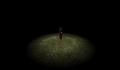
example of sphere view at medium level
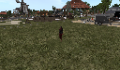
example of the pixel mode at medium level


Texture & color setup is only done over the style menu by both user and keyholder. The blindfold uses several PBR materials and legacy textures that can be used on different parts. You can adjust the style color from a color palette or custom colors. You can adjust the style of a specific part if you select the one you want to mod.

❓ HELP ❓ – Streams the help into the chat window.
❌ BACK ❌ – Move back to the previous menu.
⏏ EXIT ⏏ – Close the actual menu and release the menu access to anyone.
preset - Select a full preset for the entire ponysuit.
select - Adjust individuals parts to the wished looking.
resize - Resize individuals parts.
logo - Select the logo to display on the blindfold.
Material name starting with Le are leather textures and the one with La are the latex textures.


❌ BACK ❌ – Move back to the previous menu.
❓ HELP ❓ – Streams the help into the chat window.
Black, White, Red, B.red - Select one of the preset.
NOTE: You can still adjust the colors when the preset is used by using the select and color menus.
Examples of different presets.
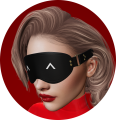
Leather black
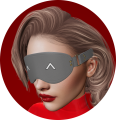
Leather gray
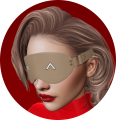
Leather beige
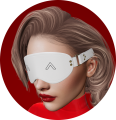
Leather white
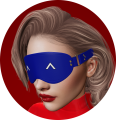
Leather blue
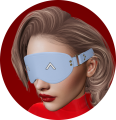
Leather light black
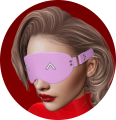
Leather pink
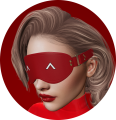
Leather red
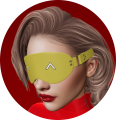
Leather yellow
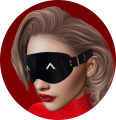
Latex black
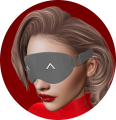
Latex gray
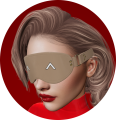
Latex beige
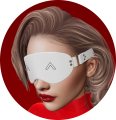
Latex white
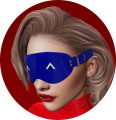
Latex blue
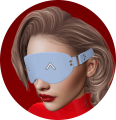
Latex light black
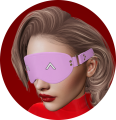
Latex pink
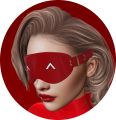
Latex red
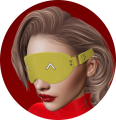
Latex yellow


If you want to texture or color a part of the ponysuit, you can do it by selecting the part you want to alter and than select what do you want to change.

❌ BACK ❌ – Move back to the previous menu.
⏪ - Move back to the previous page.
⏩ - Move forward to the next page.
❓ HELP ❓ – Streams the help into the chat window.
fab in, fab out, fab trim, pad, fab all, metal or lock - Select the part to modify.
When the part you want to modify is selected another menu will ask you what to do.

❌ BACK ❌ – Move back to the previous menu.
❓ HELP ❓ – Streams the help into the chat window.
color - Sub-menu to change the color.
material - Sub-menu to change the material texture.
rgb2PBR ✅ - Convert the linear RGB to sRGB colorspace for PBR faces.
noPBR - Remove the PBR material from the selected part and switch it back to leagacy.
Select the color you want to apply on the selected part, you can also change the custom A & B color to your liking.
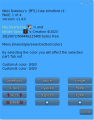
page 1/4
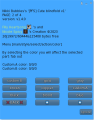
page 2/4
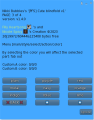
page 3/4
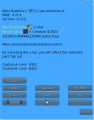
page 4/4


❌ BACK ❌ – Move back to the previous menu.
⏪ - Move back to the previous page.
⏩ - Move forward to the next page.
❓ HELP ❓ – Streams the help into the chat window.
D.green, F.pink, L.red, L,yellow, P.pink, amethyst, azure, beige, black, blood, blue, copper, custom.A, custom.B, gold, gray, indigo, lblue, lime, metal, navy, orange, plum, purple, red, silver, slate, steel, white, yellow – Select the color preset for the selected part.
RGB.A, RGB.B – Enter the new value for custom.A or custom.B color. Example <123/123/123>
Palette of colors:

Select the material you want to apply on the selected part.
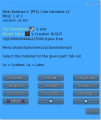
page 1/1
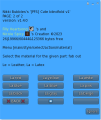
page 2/2


❌ BACK ❌ – Move back to the previous menu.
❓ HELP ❓ – Streams the help into the chat window.
Le.black, Le.gray, Le.beige, Le.white, Le.blue, Le.lblue, Le.pink, Le.red or Le.yellow - Select a leather material.
La.black, La.gray, La.beige, Lea.white, La.blue, La.lblue, La.pink, La.red or La.yellow - Select a latex material.
User or keyholder can resize and adjust the bridle to have a better fitting to the head. To help you, the selected prim will be turned full bright during a time, if you don't see a prim you can switch to the hiden prim mode with ctrl+alt+T. Be aware about the orientaion of the axes (see below)
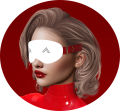
selected prim is turned bright
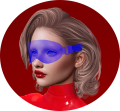
show hiden prims
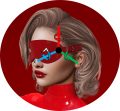
blindfold's axes


You can move the selected prim with the given step.

❌ BACK ❌ – Move back to the previous menu.
⏪ - Previous prim.
⏩ - Next prim.
Y+ - Move the prim left.
Z- - Move the prim down.
Y- - Move the prim right.
[move] - Toggle to next menu.
step - Change move step.
X+ - Move the prim front.
Z+ - Move the prim up.
X- - Move the prim back.
You can increase the size of the prim with the given step.

❌ BACK ❌ – Move back to the previous menu.
⏪ - Previous prim.
⏩ - Next prim.
Y<< - Pull the prim right.
Z↓↓ - Pull the prim down.
Y>> - Pull the prim left.
bSides ✅ - Stretch both side mode.
[bigger] - Toggle to next menu.
step - Change size step.
X<< - Pull the prim back.
Z↑↑ - Pull the prim up.
X>> - Pull the prim front.
You can decrease the size of the prim with the given step.

❌ BACK ❌ – Move back to the previous menu.
⏪ - Previous prim.
⏩ - Next prim.
Y>> - Shrink the prim from the right side.
Z↑↑ - Shrink the prim from the bottom side.
Y<< - Shrink the prim from the left side.
bSides ✅ - Shrink both side mode.
[smaller] - Toggle to next menu.
step - Change size step.
X>> - Shrink the prim from the back side.
Z↓↓ - Shrink the prim from the top side.
X<< - Shrink the prim from the front side.
You can rotate the prim with the given step.

❌ BACK ❌ – Move back to the previous menu.
⏪ - Previous prim.
⏩ - Next prim.
Y↻ - Rotate the prim around Y+ axe.
Z↺ - Rotate the prim around Z+ axe.
Y↺ - Rotate the prim around Y- axe.
[rotation] - Toggle to next menu.
step - Change rotation step.
X↻ - Rotate the prim around X+ axe.
Z↻ - Rotate the prim around Z- axe.
X↺ - Rotate the prim around X- axe.
You can scale up or down the prim with the given factor.

❌ BACK ❌ – Move back to the previous menu.
⏪ - Previous prim.
⏩ - Next prim.
decrease - Scale down the prim with the given scale factor.
[scale] - Toggle to next menu.
step - Change scale factor.
increase - Scale upthe prim with the given scale factor.
Only the user can restore the size and position to default or to rez.

❌ BACK ❌ – Move back to the previous menu.
⏪ - Previous prim.
⏩ - Next prim.
default - Restore the size and position of entire object to the default one.
@rez - Restore the size and position of entire objecy to the values at your last rez.
symmetry - Apply symmetry to the symmetric object of the selected one.
❓ HELP ❓ – Streams the help into the chat window.
[special] - Toggle to next menu.
undo - Undo the last change.
value - Write the actual position, rotation and size of the selected prim in the local chat.
