Difference between revisions of "PFS HarnessGag"
m |
m |
||
| (27 intermediate revisions by the same user not shown) | |||
| Line 1: | Line 1: | ||
__TOC__ | __TOC__ | ||
| − | [[File: | + | [[File:Hg photo wiki3.png|center]] |
| − | <h1><p style="text-align:center; color: #fe5656;font-size: 60px"> [PFS] Harness gag v1</p></h1> | + | <h1><p style="text-align:center; color: #fe5656;font-size: 60px"> [PFS] Harness gag v1.4</p></h1> |
<p>The [PFS] Harness gag is a bondage gear (not rigged and compatible to any head) to restrict your talk and view, mostly dedicated to ponyplay, it can be used in many other disciplines, you will be able to:</br> | <p>The [PFS] Harness gag is a bondage gear (not rigged and compatible to any head) to restrict your talk and view, mostly dedicated to ponyplay, it can be used in many other disciplines, you will be able to:</br> | ||
- lock/unlock with RLV or RLVa</br> | - lock/unlock with RLV or RLVa</br> | ||
| Line 9: | Line 9: | ||
- leash with auto turn and auto TP to leash holder</br> | - leash with auto turn and auto TP to leash holder</br> | ||
- apply view masks following style and color of the harness gag</br> | - apply view masks following style and color of the harness gag</br> | ||
| + | - apply vision restrictions like ML, cam lilit or focus your keyholder body</br> | ||
- show/hide accessories (ears, blinders, tag or lashes)</br> | - show/hide accessories (ears, blinders, tag or lashes)</br> | ||
- use RL/SL timer </br> | - use RL/SL timer </br> | ||
| Line 17: | Line 18: | ||
- add additionnal scripts for public, PFS access</br> | - add additionnal scripts for public, PFS access</br> | ||
- add your own access script (example is provided)</br></p> | - add your own access script (example is provided)</br></p> | ||
| + | |||
| + | changes in v1.2:</br> | ||
| + | - public leash access</br> | ||
| + | - baned list</br> | ||
| + | - allowed list</br> | ||
| + | |||
| + | changes in v1.3:</br> | ||
| + | - fixed the camera issue when leashed and sit on object</br> | ||
| + | - fixed cannot unleash yourself if leashed to post, public leash, and not having the key</br> | ||
| + | |||
| + | changes in v1.4:</br> | ||
| + | - new PBR and legacy textures</br> | ||
| + | - add resizing menu</br> | ||
| + | - change leash particules from bit when selected</br> | ||
| + | - change group access</br> | ||
| + | - add force group restriction</br> | ||
| + | - remove glossiness and environment for Legacy textures</br> | ||
| + | - remove one prim ring gag and keep the 3 parts version</br> | ||
| + | - scripts aligned to long & short bridles</br> | ||
</br> | </br> | ||
| − | + | <!--=====================================================--> | |
| − | < | + | <!--1. Generalities --> |
| + | <!--=====================================================--> | ||
<h1><p style="text-align:center; color: #fe5656;font-size: 60px">1. Generalities</p></h1> | <h1><p style="text-align:center; color: #fe5656;font-size: 60px">1. Generalities</p></h1> | ||
<p> | <p> | ||
<p>This bondage gear is the result of the cooperation with Filly Heartsong who did the mesh design. We both put together our long experience in mesh design and scripting to provide you an unique gear. Because we care we are open to listen all your comments and suggestions, as long it will help to get a better product!</p> | <p>This bondage gear is the result of the cooperation with Filly Heartsong who did the mesh design. We both put together our long experience in mesh design and scripting to provide you an unique gear. Because we care we are open to listen all your comments and suggestions, as long it will help to get a better product!</p> | ||
<br><hr><br> | <br><hr><br> | ||
| − | <h2><p style="text-align:center; color: #fe5656;font-size: 40px"> 1.1 RLV</p></h2> | + | <!--=====================================================--> |
| + | <!--1.1 RLV --> | ||
| + | <!--=====================================================--> | ||
| + | <h2><p style="text-align:center; color: #fe5656;font-size: 40px">1.1 RLV</p></h2> | ||
<p>As a viewer standard, RLV restrictions are filtered to the object UUID and if your object uses same restrictions for several functions, you may run into trouble and the result may look a way different than expected. Thay's why RLV, here, is managed to the script level. You can have several scripts triggering restrictions w/o any interactions between them. You can easily follows the object restrictions table from the RLV menu.</br>Both RLV and RLVa are supported here but for some special features like screen overlay an addition attachement is required for RLV users. Even if most of us uses RLVa viewers today we still need to make things compatible to previous standards.</p> | <p>As a viewer standard, RLV restrictions are filtered to the object UUID and if your object uses same restrictions for several functions, you may run into trouble and the result may look a way different than expected. Thay's why RLV, here, is managed to the script level. You can have several scripts triggering restrictions w/o any interactions between them. You can easily follows the object restrictions table from the RLV menu.</br>Both RLV and RLVa are supported here but for some special features like screen overlay an addition attachement is required for RLV users. Even if most of us uses RLVa viewers today we still need to make things compatible to previous standards.</p> | ||
<br><hr><br> | <br><hr><br> | ||
| − | <h2><p style="text-align:center; color: #fe5656;font-size: 40px"> 1.2 Access</p></h2> | + | <!--=====================================================--> |
| + | <!--1.2 Access --> | ||
| + | <!--=====================================================--> | ||
| + | <h2><p style="text-align:center; color: #fe5656;font-size: 40px">1.2 Access</p></h2> | ||
<p>The menu access is build in an inovative way. As standard, everyone can access the menu, with different access levels. Access levels are:</br> | <p>The menu access is build in an inovative way. As standard, everyone can access the menu, with different access levels. Access levels are:</br> | ||
| − | + | * public</br> | |
| − | + | * owner</br> | |
| − | + | * keyholder</br> | |
| − | + | * selftouch</br> | |
Depending on the lock state of the object, you may get different access levels (they are cumulable) which allows you to do things or not. The not allowed functions are strikethrough but the positive side is you can still read every parameter and setting, including the user.</br> | Depending on the lock state of the object, you may get different access levels (they are cumulable) which allows you to do things or not. The not allowed functions are strikethrough but the positive side is you can still read every parameter and setting, including the user.</br> | ||
| + | You can set banned or allowed avatars from the menu access to protect yourself, either by scan or with uuid value. You can also add banned or allowed avatars from the public ask menu if the key is not present. Allowed avatars can access the menu if the private mode is enabled.</br> | ||
The menu is mono user but the keyholder has always the priority to access it.</br> | The menu is mono user but the keyholder has always the priority to access it.</br> | ||
You can access it using the command line over channel 7, just hit /7##gag to get access to the main menu of the object. Replace ## with the user 2 first letters of the user name.</br> | You can access it using the command line over channel 7, just hit /7##gag to get access to the main menu of the object. Replace ## with the user 2 first letters of the user name.</br> | ||
The use of the API allows you to override the actual keyholder, this will help you to implement your own access list from wherever you want. You can implement "key grabbing" scripts as much you want they are asked one after the other. For more info look at the included public access script "plug.access.public".</br> | The use of the API allows you to override the actual keyholder, this will help you to implement your own access list from wherever you want. You can implement "key grabbing" scripts as much you want they are asked one after the other. For more info look at the included public access script "plug.access.public".</br> | ||
<br><hr><br> | <br><hr><br> | ||
| − | <h2><p style="text-align:center; color: #fe5656;font-size: 40px"> 1.3 Configurable</p></h2> | + | <!--=====================================================--> |
| + | <!--1.3 Configurable --> | ||
| + | <!--=====================================================--> | ||
| + | <h2><p style="text-align:center; color: #fe5656;font-size: 40px">1.3 Configurable</p></h2> | ||
<p>The object includes notecards to configure it, you can modify them at your own risk:</br> | <p>The object includes notecards to configure it, you can modify them at your own risk:</br> | ||
- logo: list of textures for the tag logo.</br> | - logo: list of textures for the tag logo.</br> | ||
- maskenv: list of extra masks textures (if you want to add some more) and list of the EEP environment presets.</br> | - maskenv: list of extra masks textures (if you want to add some more) and list of the EEP environment presets.</br> | ||
<br><hr><br> | <br><hr><br> | ||
| − | <h2><p style="text-align:center; color: #fe5656;font-size: 40px"> 1.4 API</p></h2> | + | <!--=====================================================--> |
| + | <!--1.4 API --> | ||
| + | <!--=====================================================--> | ||
| + | <h2><p style="text-align:center; color: #fe5656;font-size: 40px">1.4 API</p></h2> | ||
<p>Objects you cannot mod are no fun, that's why you will find here an integrated API that will allows you make your own key grabbing script. plug.access.public is a script, full mod and documented, to make your own.</br> | <p>Objects you cannot mod are no fun, that's why you will find here an integrated API that will allows you make your own key grabbing script. plug.access.public is a script, full mod and documented, to make your own.</br> | ||
<br><hr><br> | <br><hr><br> | ||
| − | <h2><p style="text-align:center; color: #fe5656;font-size: 40px"> 1.5 Integrated help</p></h2> | + | <!--=====================================================--> |
| + | <!--1.5 Integrated help --> | ||
| + | <!--=====================================================--> | ||
| + | <h2><p style="text-align:center; color: #fe5656;font-size: 40px">1.5 Integrated help</p></h2> | ||
<p>To make it accessible and easy to use, the object menus have a "help" feature to stream in your chat window some general informations regarding the actual menu displayed to help you to understand what does every buttons.</br> | <p>To make it accessible and easy to use, the object menus have a "help" feature to stream in your chat window some general informations regarding the actual menu displayed to help you to understand what does every buttons.</br> | ||
<br><hr><br> | <br><hr><br> | ||
| − | <h2><p style="text-align:center; color: #fe5656;font-size: 40px"> 1.6 Truekey</p></h2> | + | <!--=====================================================--> |
| + | <!--1.6 Truekey --> | ||
| + | <!--=====================================================--> | ||
| + | <h2><p style="text-align:center; color: #fe5656;font-size: 40px">1.6 Truekey</p></h2> | ||
<p>The only way to unlock the object is the use of the key held by the keyholder. In case you are stuck or the keyholder not showing back you can, if seted up previously, use the Truekey feature to get unlocked by everyone having the key password. You can access it, set it up and use it fromt he "Tools" menu.</br> | <p>The only way to unlock the object is the use of the key held by the keyholder. In case you are stuck or the keyholder not showing back you can, if seted up previously, use the Truekey feature to get unlocked by everyone having the key password. You can access it, set it up and use it fromt he "Tools" menu.</br> | ||
<br><hr><br> | <br><hr><br> | ||
| + | <!--=====================================================--> | ||
| + | <!--2. Harness gag features --> | ||
| + | <!--=====================================================--> | ||
<h1><p style="text-align:center; color: #fe5656;font-size: 60px">2. Harness gag features</p></h1> | <h1><p style="text-align:center; color: #fe5656;font-size: 60px">2. Harness gag features</p></h1> | ||
| − | <h2><p style="text-align:center; color: #fe5656;font-size: 40px"> 2.1 Main menu</p></h2> | + | <!--=====================================================--> |
| + | <!--2.1 Main menu --> | ||
| + | <!--=====================================================--> | ||
| + | <h2><p style="text-align:center; color: #fe5656;font-size: 40px">2.1 Main menu</p></h2> | ||
<p>The main menu provides you an access to all the functions. You can access it if you touch me or use the command line in the of 5m range. Command line is on channel 7 and is built with the 2 first letters of the username followed by the type of the gear: gag here... Example for 'nikki resident' gag you will type <span style="color: #ffdd33">/7nigag</span> (you will be noticed if the user has a customized prefix). You can also replace the prefix with '*' to get all users menus. Keyholder are not concerned by the distance limit but take in account the talk range limit.</p> | <p>The main menu provides you an access to all the functions. You can access it if you touch me or use the command line in the of 5m range. Command line is on channel 7 and is built with the 2 first letters of the username followed by the type of the gear: gag here... Example for 'nikki resident' gag you will type <span style="color: #ffdd33">/7nigag</span> (you will be noticed if the user has a customized prefix). You can also replace the prefix with '*' to get all users menus. Keyholder are not concerned by the distance limit but take in account the talk range limit.</p> | ||
| − | + | <gallery mode="slideshow"> | |
| − | <p><span style="color: #00ff00"> | + | Image:Hh main menu 1.png |
| + | Image:Hh main menu 2.png | ||
| + | </gallery> | ||
| + | <p><span style="color: #00ff00">❓ HELP ❓</span> – Streams the help into the chat window.<br> | ||
| + | <span style="color: #00ff00">⏪</span> - Move back to the previous page.<br> | ||
| + | <span style="color: #00ff00">⏩</span> - Move forward to the next page.<br> | ||
<span style="color: #00ff00">⏏ EXIT ⏏</span> – Close the actual menu and release the menu access to anyone. If not, the access menu will timeout after 300s of no use. Keyholder always have the priority to access the menu even if used by someone else. The actual menu user will be noticed for any attempt to access the menu (fail or success).<br> | <span style="color: #00ff00">⏏ EXIT ⏏</span> – Close the actual menu and release the menu access to anyone. If not, the access menu will timeout after 300s of no use. Keyholder always have the priority to access the menu even if used by someone else. The actual menu user will be noticed for any attempt to access the menu (fail or success).<br> | ||
| − | <span style="color: #00ff00"> | + | <span style="color: #00ff00">lock 🔓</span> – This object is not locked, no RLV restrictions are applied.<br> |
| − | <span style="color: #00ff00"> | + | <span style="color: #00ff00">unlock 🔒</span> – This object is locked, you cannot remove it and RLV restrictions are applied.<br> |
| − | <span style="color: #00ff00">key | + | <span style="color: #00ff00">key 🚫</span> – The key is not present and has been taken by someone.<br> |
| − | <span style="color: #00ff00">key | + | <span style="color: #00ff00">key 🔑</span> – The key is present, you can maybe grab it.<br> |
| + | <span style="color: #00ff00">access</span> – Sub-menu for the access settings.<br> | ||
| + | <span style="color: #00ff00">RLV</span> – Sub-menu for RLV restrictions if they are.<br> | ||
| + | <span style="color: #00ff00">timer ❌/✅</span> – Sub-menu for timelock (❌=no timer in use, ✅=timer in use).<br> | ||
<span style="color: #00ff00">tools</span> – Sub-menu for the Truekey and some settings.<br> | <span style="color: #00ff00">tools</span> – Sub-menu for the Truekey and some settings.<br> | ||
| − | <span style="color: #00ff00"> | + | <span style="color: #00ff00">gag ❌/✅</span> - Sub-menu to gag feature (❌=no function in use, ✅=at least one function in use).<br> |
| − | <span style="color: #00ff00"> | + | <span style="color: #00ff00">leash ❌/✅</span> - Sub-menu to leash feature (❌=no leash in use, ✅=leash in use).<br> |
| − | <span style="color: #00ff00"> | + | <span style="color: #00ff00">view ❌/✅</span> - Sub-menu to view feature (❌=no function in use, ✅=at least one function in use).<br> |
| − | <span style="color: #00ff00"> | + | <span style="color: #00ff00">vision ❌/✅</span> - Sub-menu to vision feature (❌=no function in use, ✅=at least one function in use).<br> |
| − | <span style="color: #00ff00">style</span> - Sub-menu for the style of the gag.<br> | + | <span style="color: #00ff00">style</span> - Sub-menu for the style of the head harness.<br></p> |
| − | <span style="color: #00ff00"> | + | <br><hr> |
| − | <span style="color: #00ff00"> | + | <!--=====================================================--> |
| + | <!--2.1.1 Unlock menu --> | ||
| + | <!--=====================================================--> | ||
| + | <h3><p style="text-align:center; color: #fe5656;font-size: 40px">2.1.1 Unlock menu</p></h3> | ||
| + | <p>When unlocking you get some options, you can either call the default settings back to put the harness gag to its initial state, or keep the settings as they are so the harness gag will take the last use settings</p> | ||
| + | [[File:HG unlock menu.png|center]]<br> | ||
| + | <span style="color: #00ff00">YES</span> – All the settings except style are reseted to there default values.<br> | ||
| + | <span style="color: #00ff00">NO</span> – All the settings are left as they are, at the next lock all restrictions will be applied again.<br> | ||
| + | <span style="color: #00ff00">MENU</span> – Get the main menu back.<br> | ||
| + | <p><span style="color: #ffdd33">NOTE:</span> timeout for this menu is shorter than the standard 300s, only 10s!.</p> | ||
| + | <br><hr> | ||
| + | <!--=====================================================--> | ||
| + | <!--2.2 Access menu --> | ||
| + | <!--=====================================================--> | ||
| + | <h2><p style="text-align:center; color: #fe5656;font-size: 40px">2.2 Access menu</p></h2> | ||
| + | [[File:Hh access menu.png|center]]<br> | ||
| + | <p><span style="color: #00ff00">❓ HELP ❓</span> – Streams the help into the chat window.<br> | ||
| + | <span style="color: #00ff00">❌ BACK ❌</span> – Move back to the previous menu.<br> | ||
| + | <span style="color: #00ff00">⏏ EXIT ⏏</span> – Close the actual menu and release the menu access to anyone.<br> | ||
| + | <span style="color: #00ff00">private ✅</span> – Only user, owners and allowed avatars can access it.<br> | ||
| + | <span style="color: #00ff00">public ✅</span> – Anyone can access the menu and grab the key.<br> | ||
| + | <span style="color: #00ff00">ask ✅</span> – Same as public but if someone want to grab the key, the actual keyholder (if present in the region) will be asked to allow it or not.<br> | ||
| + | <span style="color: #00ff00">group ✅</span> – only same group then user can access it.<br> | ||
| + | <span style="color: #00ff00">PFS ✅</span> – PFS staff can grab the key.<br> | ||
| + | <span style="color: #00ff00">owner</span> – Sub-menu to add/delete owners.<br> | ||
| + | <span style="color: #00ff00">banned</span> – Sub-menu to add/delete banned avatars.<br> | ||
| + | <span style="color: #00ff00">allowed</span> – Sub-menu to add/delete allowed avatars to use menu if the access type is set to ask or private.<br> | ||
| + | <p><span style="color: #ffdd33">NOTE:</span> if private, public, ask and group are ❌, anyone can access the menu, you can grab the key if available but if the key is already taken you can still go into all menus but all the buttons will be strikethrough.</p><br> | ||
| + | <p>Exemple of strikethrough menu where the menu user has the <span style="color: #00ff00">free</span> access level</p> | ||
| + | [[File:Hh menu strikedthrough 2.png|center]]<br> | ||
<br><hr> | <br><hr> | ||
| − | <h2><p style="text-align:center; color: #fe5656;font-size: 40px"> 2. | + | <!--=====================================================--> |
| − | [[File: | + | <!--2.2.1 Owner sub menu --> |
| − | <p><span style="color: #00ff00"> | + | <!--=====================================================--> |
| − | <span style="color: #00ff00"> | + | <h4><p style="text-align:center; color: #fe5656;font-size: 30px">2.2.1 Owner sub menu</p></h4> |
| + | <p>You can add by scan or UUID one primary owner and two scondary owners. Only primary owner can add secondary owners.</p> | ||
| + | [[File:Hh menu owner2.png|center]]<br> | ||
| + | <p><span style="color: #00ff00">❓ HELP ❓</span> – Streams the help into the chat window.<br> | ||
| + | <span style="color: #00ff00">❌ BACK ❌</span> – Move back to the previous menu.<br> | ||
| + | <span style="color: #00ff00">⏏ EXIT ⏏</span> – Close the actual menu and release the menu access to anyone.<br> | ||
| + | <span style="color: #00ff00">prim+</span> – Add primary owner (only user can do it).<br> | ||
| + | <span style="color: #00ff00">sec+</span> – Add secondary owner, only primary can add secondary owners (2 max).<br> | ||
| + | <span style="color: #00ff00">remove</span> – Primary owner can remove secondary owners or itself if unlocked.<br><p> | ||
| + | <br><hr><br> | ||
| + | <!--=====================================================--> | ||
| + | <!--2.2.2 Banned sub menu --> | ||
| + | <!--=====================================================--> | ||
| + | <h4><p style="text-align:center; color: #fe5656;font-size: 30px">2.2.2 Banned sub menu</p></h4> | ||
| + | <p>You can add, by scan or UUID, banned avatars to access the menu of the object. No information will be send to the banned avatars when added to the list or when they try to access the object menu. Only user and owners can handle this list.</p> | ||
| + | [[File:Hh banned menu.png|center]]<br> | ||
| + | <p><span style="color: #00ff00">❓ HELP ❓</span> – Streams the help into the chat window.<br> | ||
| + | <span style="color: #00ff00">❌ BACK ❌</span> – Move back to the previous menu.<br> | ||
| + | <span style="color: #00ff00">⏏ EXIT ⏏</span> – Close the actual menu and release the menu access to anyone.<br> | ||
| + | <span style="color: #00ff00">ban+</span> – Add banned avatar to the list, you will be able to scan them or enter UUID.<br> | ||
| + | <span style="color: #00ff00">ban-+</span> – Remove a banned avatar from the list, a list of avatars will be shown and you can select which one you want to remove.<br> | ||
| + | <span style="color: #00ff00">list</span> – The list of banned avatars will be streamed into your chat window.<br><p> | ||
| + | <br><hr><br> | ||
| + | <!--=====================================================--> | ||
| + | <!--2.2.3 Allowed sub menu --> | ||
| + | <!--=====================================================--> | ||
| + | <h4><p style="text-align:center; color: #fe5656;font-size: 30px">2.2.3 Allowed sub menu</p></h4> | ||
| + | <p>You can add, by scan or UUID, allowed avatars to access the menu of the object. An allowed avatar is someone that can directly access the menu w/o asking the user if the access mode is set to ask or private and grab the key if not present. Allowed avatars can also use the leash w/o taking the key if the public leash access is enabled (see leash menu section).</p> | ||
| + | [[File:Hh allowed menu.png|center]]<br> | ||
| + | <p><span style="color: #00ff00">❓ HELP ❓</span> – Streams the help into the chat window.<br> | ||
| + | <span style="color: #00ff00">❌ BACK ❌</span> – Move back to the previous menu.<br> | ||
| + | <span style="color: #00ff00">⏏ EXIT ⏏</span> – Close the actual menu and release the menu access to anyone.<br> | ||
| + | <span style="color: #00ff00">ban+</span> – Add allowed avatar to the list, you will be able to scan them or enter UUID.<br> | ||
| + | <span style="color: #00ff00">ban-+</span> – Remove an allowed avatar from the list, a list of avatars will be shown and you can select which one you want to remove.<br> | ||
| + | <span style="color: #00ff00">list</span> – The list of allowed avatars will be streamed into your chat window.<br><p> | ||
| + | <br><hr><br> | ||
| + | <!--=====================================================--> | ||
| + | <!--2.3 Tools menu --> | ||
| + | <!--=====================================================--> | ||
| + | <h2><p style="text-align:center; color: #fe5656;font-size: 40px">2.3 Tools menu</p></h2> | ||
| + | [[File:Hg new tools menu.png|center]]<br> | ||
| + | <p><span style="color: #00ff00">❓ HELP ❓</span> – Streams the help into the chat window.<br> | ||
| + | <span style="color: #00ff00">❌ BACK ❌</span> – Move back to the previous menu.<br> | ||
<span style="color: #00ff00">⏏ EXIT ⏏</span> – Close the actual menu and release the menu access to anyone.<br> | <span style="color: #00ff00">⏏ EXIT ⏏</span> – Close the actual menu and release the menu access to anyone.<br> | ||
<span style="color: #00ff00">Truekey</span> – Only the wearer can get a new Truekey. The key can get given away, but the final user will need to know the password.<br> | <span style="color: #00ff00">Truekey</span> – Only the wearer can get a new Truekey. The key can get given away, but the final user will need to know the password.<br> | ||
<span style="color: #00ff00">set pw</span> – Set a new password number for the Truekey.<br> | <span style="color: #00ff00">set pw</span> – Set a new password number for the Truekey.<br> | ||
<span style="color: #00ff00">use key</span> – When you wear the Truekey with the correct password you can grab this object key. The wearer cannot use the Truekey on its own object!<br> | <span style="color: #00ff00">use key</span> – When you wear the Truekey with the correct password you can grab this object key. The wearer cannot use the Truekey on its own object!<br> | ||
| − | <span style="color: #00ff00">spam | + | <span style="color: #00ff00">spam</span> – Access the sub-menu to change the spam setting.<br> |
| − | |||
<span style="color: #00ff00">prefix</span> – change your prefix to whatever you want as long it's built with 2 letters.<br> | <span style="color: #00ff00">prefix</span> – change your prefix to whatever you want as long it's built with 2 letters.<br> | ||
<span style="color: #00ff00">RLSD</span> – Reset the linkset data and restart all scripts, default material preset will be applied.<br></p> | <span style="color: #00ff00">RLSD</span> – Reset the linkset data and restart all scripts, default material preset will be applied.<br></p> | ||
<br><hr> | <br><hr> | ||
| − | <h2><p style="text-align:center; color: #fe5656;font-size: 40px"> 2. | + | <!--=====================================================--> |
| + | <!--2.3.1 Spam menu --> | ||
| + | <!--=====================================================--> | ||
| + | <h4><p style="text-align:center; color: #fe5656;font-size: 30px">2.3.1 Spam menu</p></h4> | ||
| + | <p>You can adjust the level of spam from differents types of message: RLV version, main feature and sub feature. You can either set it to public, private, both or disabled. By definition a sub feature is usually a parameter of a main feature, example: wrists bind into the armbinder is a main feature but fartouch restriction is a sub feature.</p> | ||
| + | [[File:Hh spam menu.png|center]]<br> | ||
| + | <p><span style="color: #00ff00">❓ HELP ❓</span> – Streams the help into the chat window.<br> | ||
| + | <span style="color: #00ff00">❌ BACK ❌</span> – Move back to the previous menu.<br> | ||
| + | <span style="color: #00ff00">⏏ EXIT ⏏</span> – Close the actual menu and release the menu access to anyone.<br> | ||
| + | <span style="color: #00ff00">RLV ✅</span> - spam the RLV version on the public chat at login/wear/reset, <span style="color: #00ff00">private</span> - only user can read it, ❌ - disabled.<br> | ||
| + | <span style="color: #00ff00">main ✅</span> - spam user and menu user for all main feature, <span style="color: #00ff00">public</span> - only menu user, <span style="color: #00ff00">private</span> - only the user, ❌ - disabled. (note: sub feature spam is following the same setting until the sub setting is changed)<br> | ||
| + | <span style="color: #00ff00">sub ✅</span> - spam user and menu user for all sub feature, <span style="color: #00ff00">public</span> - only menu user, <span style="color: #00ff00">private</span> - only the user, ❌ - disabled.<br></p> | ||
| + | <br><hr> | ||
| + | <!--=====================================================--> | ||
| + | <!--2.4 RLV menu --> | ||
| + | <!--=====================================================--> | ||
| + | <h2><p style="text-align:center; color: #fe5656;font-size: 40px">2.4 RLV menu</p></h2> | ||
<p>Universal scripts must deal with different configurations where sometimes same restrictions can be triggered by two scripts. That’s why here RLV restrictions are managed in a unique way. The goal is to keep things working as they should and especially when restrictions are lifted. All active restrictions are listed with the restriction itself like <span style="color: #ffdd33">sendchat=n</span> and the script which triggered it <span style="color: #ffdd33">from sub.gag.headharness</span>.</p> | <p>Universal scripts must deal with different configurations where sometimes same restrictions can be triggered by two scripts. That’s why here RLV restrictions are managed in a unique way. The goal is to keep things working as they should and especially when restrictions are lifted. All active restrictions are listed with the restriction itself like <span style="color: #ffdd33">sendchat=n</span> and the script which triggered it <span style="color: #ffdd33">from sub.gag.headharness</span>.</p> | ||
| − | [[File: | + | [[File:Hh rlv menu.png|center]]<br> |
| − | <p><span style="color: #00ff00"> | + | <p><span style="color: #00ff00">❓ HELP ❓</span> – Streams the help into the chat window.<br> |
| − | <span style="color: #00ff00"> | + | <span style="color: #00ff00">❌ BACK ❌</span> – Move back to the previous menu.<br> |
<span style="color: #00ff00">⏏ EXIT ⏏</span> – Close the actual menu and release the menu access to anyone.<br> | <span style="color: #00ff00">⏏ EXIT ⏏</span> – Close the actual menu and release the menu access to anyone.<br> | ||
<span style="color: #00ff00">list</span> - Stream in your chat window all the active restrictions with the script name which is the source of the restriction. You may see same restriction for different scripts, this is all normal.</p><br> | <span style="color: #00ff00">list</span> - Stream in your chat window all the active restrictions with the script name which is the source of the restriction. You may see same restriction for different scripts, this is all normal.</p><br> | ||
| Line 94: | Line 234: | ||
[[File:HG menu RLV example.png|center]]<br> | [[File:HG menu RLV example.png|center]]<br> | ||
<br><hr> | <br><hr> | ||
| − | <h2><p style="text-align:center; color: #fe5656;font-size: 40px"> 2. | + | <!--=====================================================--> |
| − | <p style="color: #ffdd33">NOTE: When the timer runs out, the key is given back to the user. No one will be able to grab it except if they are some "key grabbing" plugin scripts installed.</p> | + | <!--2.5 Timer menu --> |
| + | <!--=====================================================--> | ||
| + | <h2><p style="text-align:center; color: #fe5656;font-size: 40px">2.5 Timer menu</p></h2> | ||
| + | <p><span style="color: #ffdd33">NOTE:</span> When the timer runs out, the key is given back to the user. No one will be able to grab it except if they are some "key grabbing" plugin scripts installed.</p> | ||
<p>The timer can be RL or SL time, you can switch from one to another w/o resetting the time left. Wearer can set a timer and do some self-bondage, once started the timer cannot be stopped except if someone else grab the key and get the keyholder access level.</p> | <p>The timer can be RL or SL time, you can switch from one to another w/o resetting the time left. Wearer can set a timer and do some self-bondage, once started the timer cannot be stopped except if someone else grab the key and get the keyholder access level.</p> | ||
<gallery mode="slideshow"> | <gallery mode="slideshow"> | ||
| − | Image: | + | Image:Hh timer1 menu.png |
| − | Image: | + | Image:Hh timer2 menu.png |
</gallery> | </gallery> | ||
| − | <p><span style="color: #00ff00"> | + | <p><span style="color: #00ff00">❌ BACK ❌</span> – Move back to the previous menu.<br> |
| − | <span style="color: #00ff00"> | + | <span style="color: #00ff00">⏪</span> - Move back to the previous page.<br> |
| − | <span style="color: #00ff00"> | + | <span style="color: #00ff00">⏩</span> - Move forward to the next page.<br> |
| − | <span style="color: #00ff00"> | + | <span style="color: #00ff00">❓ HELP ❓</span> – Streams the help into the chat window.<br> |
| − | <span style="color: #00ff00">stop</span> - Stop the actual timer but don't give back the key back to the | + | <span style="color: #00ff00">stop</span> - Stop the actual timer but don't give back the key back to the user.<br> |
| − | <span style="color: #00ff00">RLtime | + | <span style="color: #00ff00">RLtime ❌</span> – SL time mode.<br> |
| − | <span style="color: #00ff00">RLtime | + | <span style="color: #00ff00">RLtime ✅</span> – RL time mode.<br> |
| − | <span style="color: #00ff00">hide | + | <span style="color: #00ff00">hide ✅</span> – The actual timer value and any added time triggered by the menu buttons are hided to the wearer.<br> |
<span style="color: #00ff00">+2min</span> – Add 2 minutes to the actual timer value.<br> | <span style="color: #00ff00">+2min</span> – Add 2 minutes to the actual timer value.<br> | ||
<span style="color: #00ff00">+5min</span> – Add 5 minutes to the actual timer value.<br> | <span style="color: #00ff00">+5min</span> – Add 5 minutes to the actual timer value.<br> | ||
| Line 118: | Line 261: | ||
<span style="color: #00ff00">+24h</span> – Add 24 hours to the actual timer value.<br></p> | <span style="color: #00ff00">+24h</span> – Add 24 hours to the actual timer value.<br></p> | ||
<br><hr> | <br><hr> | ||
| − | <h2><p style="text-align:center; color: #fe5656;font-size: 40px"> 2. | + | <!--=====================================================--> |
| − | <p style="color: #ffdd33">NOTE: The restrictions are only active when the object is locked, and a gag type is applied.</p> | + | <!--2.6 Gag menu --> |
| + | <!--=====================================================--> | ||
| + | <h2><p style="text-align:center; color: #fe5656;font-size: 40px">2.6 Gag menu</p></h2> | ||
| + | <p><span style="color: #ffdd33">NOTE:</span> The restrictions are only active when the object is locked, and a gag type is applied.</p> | ||
<gallery mode="slideshow"> | <gallery mode="slideshow"> | ||
| − | Image: | + | Image:Hh gag1 menu.png |
| − | Image: | + | Image:Hh gag2 menu.png |
</gallery> | </gallery> | ||
| − | <p><span style="color: #00ff00"> | + | <p><span style="color: #00ff00">❌ BACK ❌</span> – Move back to the previous menu.<br> |
| − | <span style="color: #00ff00"> | + | <span style="color: #00ff00">⏪</span> - Move back to the previous page.<br> |
| − | <span style="color: #00ff00"> | + | <span style="color: #00ff00">⏩</span> - Move forward to the next page.<br> |
| − | <span style="color: #00ff00"> | + | <span style="color: #00ff00">❓ HELP ❓</span> – Streams the help into the chat window.<br> |
<span style="color: #00ff00">level ▂▃▅▇▉</span> – Gag level, from lightly gagged (▂) to heavy (▉).<br> | <span style="color: #00ff00">level ▂▃▅▇▉</span> – Gag level, from lightly gagged (▂) to heavy (▉).<br> | ||
| − | <span style="color: #00ff00">ball, bit, cock, holed, ring | + | <span style="color: #00ff00">ball, bit, cock, holed, ring ✅</span> – Select the gag type.<br> |
| − | <span style="color: #00ff00">Safe | + | <span style="color: #00ff00">Safe ✅</span> – When safe the gag's channel changes every now and then to avoid cheat with gag's readers.<br> |
<span style="color: #00ff00">Rename</span> – Set an alternative name for the gag talk and emotes.<br> | <span style="color: #00ff00">Rename</span> – Set an alternative name for the gag talk and emotes.<br> | ||
| − | <span style="color: #00ff00">emote | + | <span style="color: #00ff00">emote ❌ ▂ ▆ ▉</span> – Capps the emotes length to the following levels:<br> |
| − | *<span style="color: #00ff00">none [ | + | *<span style="color: #00ff00">none [❌]</span> – disabled.<br> |
*<span style="color: #00ff00">light [▂]</span> – 40 chars/10 sec<br> | *<span style="color: #00ff00">light [▂]</span> – 40 chars/10 sec<br> | ||
*<span style="color: #00ff00">heavy [▆]</span> – 20 chars/20 sec<br> | *<span style="color: #00ff00">heavy [▆]</span> – 20 chars/20 sec<br> | ||
*<span style="color: #00ff00">total [▉]</span> – swallows all emote.<br> | *<span style="color: #00ff00">total [▉]</span> – swallows all emote.<br> | ||
| − | <span style="color: #00ff00">OCC | + | <span style="color: #00ff00">OCC ✅</span> – OCC (()) is allowed.<br> |
| − | <span style="color: #00ff00">OCC | + | <span style="color: #00ff00">OCC ❌</span> – OCC (()) is restricted.<br> |
| − | <span style="color: #00ff00">srt.IM | + | <span style="color: #00ff00">srt.IM ✅</span> – Start IM is allowed.<br> |
| − | <span style="color: #00ff00">srt.IM | + | <span style="color: #00ff00">srt.IM ❌</span> – Start IM is restricted.<br> |
| − | <span style="color: #00ff00">snd.IM | + | <span style="color: #00ff00">snd.IM ✅</span> – Send IM is allowed.<br> |
| − | <span style="color: #00ff00">snd.IM | + | <span style="color: #00ff00">snd.IM ❌</span> – Send IM is restricted.<br> |
| − | <span style="color: #00ff00">rec.IM | + | <span style="color: #00ff00">rec.IM ✅</span> – Receive IM is allowed.<br> |
| − | <span style="color: #00ff00">rec.IM | + | <span style="color: #00ff00">rec.IM ❌</span> – Receive IM is restricted.<br> |
| − | <span style="color: #00ff00">key.IM | + | <span style="color: #00ff00">key.IM ❌</span> – no IM exception to keyholder.<br> |
| − | <span style="color: #00ff00">key.IM | + | <span style="color: #00ff00">key.IM ✅</span> – IM exception to keyholder.<br> |
| − | <span style="color: #00ff00">clear | + | <span style="color: #00ff00">clear ✅</span> – Reset all gag settings back to default values. ✅ means the settings are on default values.<br></p> |
---- | ---- | ||
<p>You can select up to 5 differents gags from the gag menu:</p> | <p>You can select up to 5 differents gags from the gag menu:</p> | ||
<gallery mode="slideshow"> | <gallery mode="slideshow"> | ||
| − | File: | + | File:hg gag ball2.png|ball gag |
| − | File: | + | File:hg gag ring2.png|bit |
| − | File: | + | File:hg gag cock2.png|cock |
| − | File: | + | File:hg gag holed2.png|holed ball |
| − | File: | + | File:hg gag ring3.png|ring gag |
</gallery> | </gallery> | ||
<p>Since the object is not rigged you can easily adjust the gags to your head by editing the object.</p> | <p>Since the object is not rigged you can easily adjust the gags to your head by editing the object.</p> | ||
<br><hr> | <br><hr> | ||
| − | <h2><p style="text-align:center; color: #fe5656;font-size: 40px"> 2. | + | <!--=====================================================--> |
| − | <p>If you use the smart leash holder available from the [tools] menu you can make the | + | <!--2.7 Leash menu --> |
| − | If the leash holder is not detected in the same region, a leash timeout is triggered after 300s and the | + | <!--=====================================================--> |
| − | [[File: | + | <h2><p style="text-align:center; color: #fe5656;font-size: 40px">2.7 Leash menu</p></h2> |
| − | <p><span style="color: #00ff00"> | + | <p>If you use the smart leash holder available from the [tools] button from leash menu, you can make the user following you when leashed even through TP. As soon as the distance between the leash holder and the wearer is greater than 2 times the leash distance a TP is send to the user. |
| − | <span style="color: #00ff00"> | + | If the leash holder is not detected in the same region, a leash timeout is triggered after 300s and the user will be unleashed.</p> |
| − | <span style="color: #00ff00"> | + | [[File:Hh leash menu.png|center]]<br> |
| − | <span style="color: #00ff00"> | + | <p><span style="color: #00ff00">❓ HELP ❓</span> – Streams the help into the chat window.<br> |
| − | <span style="color: #00ff00"> | + | <span style="color: #00ff00">❌ BACK ❌</span> – Move back to the previous menu.<br> |
| − | <span style="color: #00ff00">post | + | <span style="color: #00ff00">⏏ EXIT ⏏</span> – Close the actual menu and release the menu access to anyone.<br> |
| − | <span style="color: #00ff00"> | + | <span style="color: #00ff00">tools</span> – Get the smart leash holder.<br> |
| − | + | <span style="color: #00ff00">leash ✅</span> – Grab the leash in your hand (✅=leash to person active).<br> | |
| − | + | <span style="color: #00ff00">post ✅</span> – Leash to an object (✅=leash to post active).<br> | |
| − | <span style="color: #00ff00">yank</span> – Yank the leash to make the | + | <span style="color: #00ff00">length Ym</span> – Sub-menu to select the leash length (Y=actual leash length).<br> |
| − | <span style="color: #00ff00"> | + | <span style="color: #00ff00">unleash</span> – Disconnect the leash from your hand or post.<br> |
| − | <span style="color: #00ff00"> | + | <span style="color: #00ff00">yank</span> – Yank the leash to make the user moving up to the leash target the distance is less than 1m.<br> |
| + | <span style="color: #00ff00">type [c or r]</span> – Select leash type chain (c) or rope (r).<br> | ||
| + | <span style="color: #00ff00">public ✅/❌</span> – When enabled, anyone can use the leash even if the public access is disabled. You can't rip the leash from someone already holding it!<br></p> | ||
<br><hr> | <br><hr> | ||
| − | <h2><p style="text-align:center; color: #fe5656;font-size: 40px"> 2. | + | <!--=====================================================--> |
| − | [[File: | + | <!--2.8 View menu --> |
| − | <p><span style="color: #00ff00"> | + | <!--=====================================================--> |
| − | <span style="color: #00ff00"> | + | <h2><p style="text-align:center; color: #fe5656;font-size: 40px">2.8 View menu</p></h2> |
| + | [[File:Hh view menu.png|center]]<br> | ||
| + | <p><span style="color: #00ff00">❓ HELP ❓</span> – Streams the help into the chat window.<br> | ||
| + | <span style="color: #00ff00">❌ BACK ❌</span> – Move back to the previous menu.<br> | ||
<span style="color: #00ff00">⏏ EXIT ⏏</span> – Close the actual menu and release the menu access to anyone.<br> | <span style="color: #00ff00">⏏ EXIT ⏏</span> – Close the actual menu and release the menu access to anyone.<br> | ||
| − | <span style="color: #00ff00">mask | + | <span style="color: #00ff00">mask ❌</span> – The view is clear, and no mask (overlay) is applied on the display. Click me to enter the sub-menu.<br> |
| − | <span style="color: #00ff00">mask | + | <span style="color: #00ff00">mask ✅</span> – A mask (overlay) is applied on the display to restrict the view. Click me to enter the sub-menu.<br> |
| − | <span style="color: #00ff00">env | + | <span style="color: #00ff00">env ❌</span> – The environment is not forced; the user can toggle daytime and environment settings. Click me to enter sub-menu.<br> |
| − | <span style="color: #00ff00">env | + | <span style="color: #00ff00">env ✅</span> – The environment is forced; the user cannot toggle daytime and environment settings. Click me to enter sub-menu.<br> |
| − | <span style="color: #00ff00">clear | + | <span style="color: #00ff00">clear ✅</span> - Reset all mask & environment settings back to default values. ✔means the settings are on default values.<br></p> |
<br><hr> | <br><hr> | ||
| − | <h3><p style="text-align:center; color: #fe5656;font-size: 40px"> 2. | + | <!--=====================================================--> |
| + | <!--2.8.1 Mask menu --> | ||
| + | <!--=====================================================--> | ||
| + | <h3><p style="text-align:center; color: #fe5656;font-size: 40px">2.8.1 Mask menu</p></h3> | ||
<p>The list of available masks is variable and build from the <span style="color: #ffdd33">maskenv</span> notecard and those that are manually added from the <span style="color: #ffdd33">add</span> menu. In addition the <span style="color: #ffdd33">auto</span> setting will force the user to get a mask depending on the shown accessories, the <span style="color: #ffdd33">strap in</span> texture and the color.</p> | <p>The list of available masks is variable and build from the <span style="color: #ffdd33">maskenv</span> notecard and those that are manually added from the <span style="color: #ffdd33">add</span> menu. In addition the <span style="color: #ffdd33">auto</span> setting will force the user to get a mask depending on the shown accessories, the <span style="color: #ffdd33">strap in</span> texture and the color.</p> | ||
| − | [[File: | + | [[File:Hh mask menu.png|center]]<br> |
| − | <p><span style="color: #00ff00"> | + | <p><span style="color: #00ff00">❓ HELP ❓</span> – Streams the help into the chat window.<br> |
| − | <span style="color: #00ff00"> | + | <span style="color: #00ff00">❌ BACK ❌</span> – Move back to the previous menu.<br> |
<span style="color: #00ff00">add</span> – Add a custom mask to the list. Format is <texture_uuid>,<name>[,<color_name>]. Name length is limited to 8 letters and must be unique. Color is optional but the name must be present in the internal memory.<br> | <span style="color: #00ff00">add</span> – Add a custom mask to the list. Format is <texture_uuid>,<name>[,<color_name>]. Name length is limited to 8 letters and must be unique. Color is optional but the name must be present in the internal memory.<br> | ||
<span style="color: #00ff00">delete</span> – Delete a custom mask from the list if they are.<br> | <span style="color: #00ff00">delete</span> – Delete a custom mask from the list if they are.<br> | ||
<span style="color: #00ff00">transparency</span> – Set the transparency value of the mask.<br> | <span style="color: #00ff00">transparency</span> – Set the transparency value of the mask.<br> | ||
<span style="color: #00ff00">color</span> – Set the color of the mask.<br> | <span style="color: #00ff00">color</span> – Set the color of the mask.<br> | ||
| − | <span style="color: #00ff00">none | + | <span style="color: #00ff00">none ✅</span> – Remove the actual mask from the user’s view. ✅ means there is no mask active.<br> |
<span style="color: #00ff00"><list of masks>…</span> – List of available masks. The list is built from the textures present in the ‘overlay’ notecard, the one manually added from the menu and optionally <span style="color: #ffdd33">auto</span>. <span style="color: #ffdd33">auto</span> means the mask is sync to the object style.<br></p> | <span style="color: #00ff00"><list of masks>…</span> – List of available masks. The list is built from the textures present in the ‘overlay’ notecard, the one manually added from the menu and optionally <span style="color: #ffdd33">auto</span>. <span style="color: #ffdd33">auto</span> means the mask is sync to the object style.<br></p> | ||
<br><hr> | <br><hr> | ||
<p>Examples of <span style="color: #ffdd33">auto</span> masks:</p> | <p>Examples of <span style="color: #ffdd33">auto</span> masks:</p> | ||
<gallery mode="slideshow"> | <gallery mode="slideshow"> | ||
| − | File: | + | File:hg hud view 1.png|leather black |
| − | File: | + | File:hg hud view 2.png|latex red strap & lashes |
| − | File: | + | File:hg hud view 3.png|leather pink strap & blinders |
| − | File: | + | File:hg hud view 4.png|latex white strap & lashes & blinders |
</gallery> | </gallery> | ||
<br><hr> | <br><hr> | ||
| − | <h4><p style="text-align:center; color: #fe5656;font-size: 40px"> 2. | + | <!--=====================================================--> |
| + | <!--2.8.1.1 Add mask menu --> | ||
| + | <!--=====================================================--> | ||
| + | <h4><p style="text-align:center; color: #fe5656;font-size: 40px">2.8.1.1 Add mask menu</p></h4> | ||
[[File:HG menu mask add.png|center]]<br> | [[File:HG menu mask add.png|center]]<br> | ||
<p>Format is <span style="color: #ffdd33"><texture_uuid></span>,<span style="color: #ffdd33"><name></span>[,<span style="color: #ffdd33"><color_name></span>]. Name length is limited to 8 letters and must be unique. Color is optional and can be: amethyst, azure, black, blood, blue, copper, D.green, F.pink, gold, indigo, L.red, L.yellow, lime, metal, navy, orange, P.pink, plum, purple, red, slate, silver, steel, yellow, white, custom.A or custom.B</p> | <p>Format is <span style="color: #ffdd33"><texture_uuid></span>,<span style="color: #ffdd33"><name></span>[,<span style="color: #ffdd33"><color_name></span>]. Name length is limited to 8 letters and must be unique. Color is optional and can be: amethyst, azure, black, blood, blue, copper, D.green, F.pink, gold, indigo, L.red, L.yellow, lime, metal, navy, orange, P.pink, plum, purple, red, slate, silver, steel, yellow, white, custom.A or custom.B</p> | ||
<p>Example: <span style="color: #ffdd33">004dd4ed-b5fe-3b36-cf6d-8b97024473c6,2Bholes,black</span> for a black mask with the 2 big holes.</p> | <p>Example: <span style="color: #ffdd33">004dd4ed-b5fe-3b36-cf6d-8b97024473c6,2Bholes,black</span> for a black mask with the 2 big holes.</p> | ||
<br><hr> | <br><hr> | ||
| − | <h4><p style="text-align:center; color: #fe5656;font-size: 40px"> 2. | + | <!--=====================================================--> |
| − | [[File: | + | <!--2.8.1.2 Delete mask menu --> |
| + | <!--=====================================================--> | ||
| + | <h4><p style="text-align:center; color: #fe5656;font-size: 40px">2.8.1.2 Delete mask menu</p></h4> | ||
| + | [[File:Hh mask delete menu.png|center]]<br> | ||
<p>Select the mask you want to remove from the list, you can only delete those which has been added manually.</p> | <p>Select the mask you want to remove from the list, you can only delete those which has been added manually.</p> | ||
<br><hr> | <br><hr> | ||
| − | <h4><p style="text-align:center; color: #fe5656;font-size: 40px"> 2. | + | <!--=====================================================--> |
| + | <!--2.8.1.3 Transparency menu --> | ||
| + | <!--=====================================================--> | ||
| + | <h4><p style="text-align:center; color: #fe5656;font-size: 40px">2.8.1.3 Transparency menu</p></h4> | ||
<p>You can adjust the transparency of the mask.</p> | <p>You can adjust the transparency of the mask.</p> | ||
| − | [[File: | + | [[File:Hh transparency menu.png|center]]<br> |
| − | <p><span style="color: #00ff00"> | + | <p><span style="color: #00ff00">❌ BACK ❌</span> – Move back to the previous menu.<br> |
<span style="color: #00ff00">0%</span> – Make the mask opaque.<br> | <span style="color: #00ff00">0%</span> – Make the mask opaque.<br> | ||
<span style="color: #00ff00">100%</span> – Make the mask transparent.<br> | <span style="color: #00ff00">100%</span> – Make the mask transparent.<br> | ||
| Line 226: | Line 389: | ||
<span style="color: #00ff00">+10%</span> – Increase the transparency by 10%.<br></p> | <span style="color: #00ff00">+10%</span> – Increase the transparency by 10%.<br></p> | ||
<br><hr> | <br><hr> | ||
| − | <h4><p style="text-align:center; color: #fe5656;font-size: 40px"> 2. | + | <!--=====================================================--> |
| + | <!--2.8.1.3 Color menu --> | ||
| + | <!--=====================================================--> | ||
| + | <h4><p style="text-align:center; color: #fe5656;font-size: 40px">2.8.1.3 Color menu</p></h4> | ||
<p>You can change the base color of the mask to adjust it to your liking, in addition you can also make the color cycling. Best result only one white based mask.</p> | <p>You can change the base color of the mask to adjust it to your liking, in addition you can also make the color cycling. Best result only one white based mask.</p> | ||
<gallery mode="slideshow"> | <gallery mode="slideshow"> | ||
| − | Image: | + | Image:Hh color1 menu.png|page 1/4 |
| − | Image: | + | Image:Hh color2 menu.png|page 2/4 |
| − | Image: | + | Image:Hh color3 menu.png|page 3/4 |
| − | Image: | + | Image:Hh color4 menu.png|page 4/4 |
</gallery> | </gallery> | ||
| − | <p><span style="color: #00ff00"> | + | <p><span style="color: #00ff00">❌ BACK ❌</span> – Move back to the previous menu.<br> |
| − | <span style="color: #00ff00"> | + | <span style="color: #00ff00">⏪</span> - Move back to the previous page.<br> |
| − | <span style="color: #00ff00"> | + | <span style="color: #00ff00">⏩</span> - Move forward to the next page.<br> |
| − | <span style="color: #00ff00"> | + | <span style="color: #00ff00">❓ HELP ❓</span> – Streams the help into the chat window.<br> |
<span style="color: #00ff00">D.green, F.pink, L.red, L,yellow, P.pink, amethyst, azure, black, blood, blue, copper, custom.A, custom.B, gold, indigo,lime, metal, navy, orange, plum, purple, red, silver, slate, steel, white, yellow</span> – Select the color preset for the mask.<br> | <span style="color: #00ff00">D.green, F.pink, L.red, L,yellow, P.pink, amethyst, azure, black, blood, blue, copper, custom.A, custom.B, gold, indigo,lime, metal, navy, orange, plum, purple, red, silver, slate, steel, white, yellow</span> – Select the color preset for the mask.<br> | ||
<span style="color: #00ff00">RGB.A, RGB.B</span> – Enter the new value for custom.A or custom.B color. Example <123/123/123><br> | <span style="color: #00ff00">RGB.A, RGB.B</span> – Enter the new value for custom.A or custom.B color. Example <123/123/123><br> | ||
| − | <span style="color: #00ff00">cycle | + | <span style="color: #00ff00">cycle ❌</span> – No color cycling.<br> |
| − | <span style="color: #00ff00">cycle | + | <span style="color: #00ff00">cycle ✅</span> – Mask color is cycling to randoms values. Every defined time a new color is randomly selected and the mask change to the next value with gradient.<br> |
<span style="color: #00ff00">time</span> – Enter a new cycle time for color change.<br></p> | <span style="color: #00ff00">time</span> – Enter a new cycle time for color change.<br></p> | ||
<br><hr> | <br><hr> | ||
| − | <h3><p style="text-align:center; color: #fe5656;font-size: 40px"> 2. | + | <!--=====================================================--> |
| + | <!--2.8.2 Environment menu --> | ||
| + | <!--=====================================================--> | ||
| + | <h3><p style="text-align:center; color: #fe5656;font-size: 40px">2.8.2 Environment menu</p></h3> | ||
<p>The list of available environments presets is variable and build from the <span style="color: #ffdd33">maskenv</span> notecard and those that are manually added from the <span style="color: #ffdd33">add</span> menu.</p> | <p>The list of available environments presets is variable and build from the <span style="color: #ffdd33">maskenv</span> notecard and those that are manually added from the <span style="color: #ffdd33">add</span> menu.</p> | ||
| − | + | <gallery mode="slideshow"> | |
| − | [[File:Warning64.png|frameless|left]] If your <span style="color: #ffdd33">settings</span> folder is not populated with environnement settings, the final result may differ depending on the viewer you are using! | + | File:Hh env1 menu.png|page 1/5 |
| − | <p><span style="color: #00ff00"> | + | File:Hh env2 menu.png|page 2/5 |
| − | <span style="color: #00ff00"> | + | File:Hh env3 menu.png|page 3/5 |
| + | File:Hh env4 menu.png|page 4/5 | ||
| + | File:Hh env5 menu.png|page 5/5 | ||
| + | </gallery> | ||
| + | [[File:Warning64.png|frameless|left]] If your <span style="color: #ffdd33">settings</span> folder is not populated with environnement settings, the final result may differ depending on the viewer you are using! Best copy all the sets from your Librairy\Environnements\Skies\ to your Inventory\settings\.<br><br><br> | ||
| + | <p><span style="color: #00ff00">❌ BACK ❌</span> – Move back to the previous menu.<br> | ||
| + | <span style="color: #00ff00">❓ HELP ❓</span> – Streams the help into the chat window.<br> | ||
<span style="color: #00ff00">add</span> - Add a custom environnement setting to the set, format is name (8 chars max) no space no punctuation. In case of EEP be sure the setting is present in the user inventory, see folder 'settings'.<br> | <span style="color: #00ff00">add</span> - Add a custom environnement setting to the set, format is name (8 chars max) no space no punctuation. In case of EEP be sure the setting is present in the user inventory, see folder 'settings'.<br> | ||
<span style="color: #00ff00">delete</span> - Remove a custom environment setting from the list if they are.<br> | <span style="color: #00ff00">delete</span> - Remove a custom environment setting from the list if they are.<br> | ||
| − | <span style="color: #00ff00">none | + | <span style="color: #00ff00">none ✅</span> - No environnement preset active.<br> |
| − | <span style="color: #00ff00">default</span> - The user is unable to change the viewer environment settings and the | + | <span style="color: #00ff00">default, Neutral, Midnight, Sunrise, A-3AM, A-6AM, A-9AM, Midday, A-3PM, A-6PM, A-9PM, Night,80's Wave, Barcelona, Blizzard, Blue Midday, Bristol, CalWL, Coastal Afternoon, Coastal Sunset, Desert Sunset, Dusty, Fine Day, foggy, Funky Funky Funky, gelatto,Ghost, PaperSnow, Pinkpurple, Pirate, Purple, Purplebluenight, Verdigris, ShadowSet</span> - The user is unable to change the viewer environment settings and is forced to one of the listed. Preset can be EEP settings if the user folders are previously setup.<br> |
| − | |||
| − | |||
<br><hr> | <br><hr> | ||
| − | <h4><p style="text-align:center; color: #fe5656;font-size: 40px"> 2. | + | <p>Examples of environment settings.</p> |
| + | <gallery mode="slideshow"> | ||
| + | File:Hg env default.png|default | ||
| + | File:Hg env neutral.png|Neutral | ||
| + | File:Hg env midnight.png|Midnight | ||
| + | File:Hg env sunrise.png|Sunrise | ||
| + | File:Hg env A3AM.png|A-3AM | ||
| + | File:Hg env A6AM.png|A-6AM | ||
| + | File:Hg env A9AM.png|A-9AM | ||
| + | File:Hg env midday.png|Midday | ||
| + | File:Hg env A3PM.png|A-3PM | ||
| + | File:Hg env A6PM.png|A-6PM | ||
| + | File:Hg env A9PM.png|A-9PM | ||
| + | File:Hg env night.png|Night | ||
| + | File:Hg env 80's wave.png|80's Wave | ||
| + | File:Hg env barcelona.png|Barcelona | ||
| + | File:Hg env blizzard.png|Blizzard | ||
| + | File:Hg env blue midday.png|Blue Midday | ||
| + | File:Hg env bristol.png|Bristol | ||
| + | File:Hg env calwl.png|CalWL | ||
| + | File:Hg env costal afternoon.png|Coastal Afternoon | ||
| + | File:Hg env costal sunset.png|Coastal Sunset | ||
| + | File:Hg env desert sunset.png|Desert Sunset | ||
| + | File:Hg env dusty.png|Dusty | ||
| + | File:Hg env fine day.png|Fine Day | ||
| + | File:Hg env foggy.png|foggy | ||
| + | File:Hg env funky funky funky.png|Funky Funky Funky | ||
| + | File:Hg env gelatto.png|gelatto | ||
| + | File:Hg env ghost.png|Ghost | ||
| + | File:Hg env papersnow.png|PaperSnow | ||
| + | File:Hg env pinkpurple.png|Pinkpurple | ||
| + | File:Hg env pirate.png|Pirate | ||
| + | File:Hg env purple.png|Purple | ||
| + | File:Hg env purplebluenight.png|Purplebluenight | ||
| + | File:Hg env verdigris.png|Verdigris | ||
| + | File:Hg env shadowset.png|ShadowSet | ||
| + | </gallery> | ||
| + | <br><hr> | ||
| + | <!--=====================================================--> | ||
| + | <!--2.8.2.1 Add menu --> | ||
| + | <!--=====================================================--> | ||
| + | <h4><p style="text-align:center; color: #fe5656;font-size: 40px">2.8.2.1 Add menu</p></h4> | ||
[[File:HG menu environment menu add.png|center]]<br> | [[File:HG menu environment menu add.png|center]]<br> | ||
<p>Example: <span style="color: #ffdd33">Bristol</span> for a dark environment setting.</p> | <p>Example: <span style="color: #ffdd33">Bristol</span> for a dark environment setting.</p> | ||
<br><hr> | <br><hr> | ||
| + | <!--=====================================================--> | ||
| + | <!--2.8.2.2 Setup environment folder --> | ||
| + | <!--=====================================================--> | ||
| + | <h4><p style="text-align:center; color: #fe5656;font-size: 40px">2.8.2.2 Setup environment folder</p></h4> | ||
<p>How to correctly setup your inventory from the environment library.</p> | <p>How to correctly setup your inventory from the environment library.</p> | ||
[[File:HG environment settup 1024.png|center]]<br> | [[File:HG environment settup 1024.png|center]]<br> | ||
<br><hr> | <br><hr> | ||
| − | <h2><p style="text-align:center; color: #fe5656;font-size: 40px"> 2. | + | <!--=====================================================--> |
| + | <!--2.9 Vision menu --> | ||
| + | <!--=====================================================--> | ||
| + | <h2><p style="text-align:center; color: #fe5656;font-size: 40px">2.9 Vision menu</p></h2> | ||
<p>From this menu you can apply some vision restrictions.</p> | <p>From this menu you can apply some vision restrictions.</p> | ||
| − | [[File: | + | [[File:Hh vision2 menu.png|center]]<br> |
| − | <p><span style="color: #00ff00"> | + | <p><span style="color: #00ff00">❌ BACK ❌</span> – Move back to the previous menu.<br> |
| − | <span style="color: #00ff00"> | + | <span style="color: #00ff00">❓ HELP ❓</span> – Streams the help into the chat window.<br> |
<span style="color: #00ff00">⏏ EXIT ⏏</span> – Close the actual menu and release the menu access to anyone.<br> | <span style="color: #00ff00">⏏ EXIT ⏏</span> – Close the actual menu and release the menu access to anyone.<br> | ||
| − | <span style="color: #00ff00">ML | + | <span style="color: #00ff00">ML ✅</span> - Mouselook is enabled and the user's camera is forced to the first-view.<br> |
| − | <span style="color: #00ff00">lock | + | <span style="color: #00ff00">lock ✅</span> - prevents the user from unlocking the camera from the avatar, meaning that the user cannot use Alt to focus nor orbit the camera around the avatar. While the camera is locked, the sim forces it to stay in a line of sight from the avatar.<br> |
| − | <span style="color: #00ff00">limit | + | <span style="color: #00ff00">limit ❌</span> - no camera limit range is active, click for options.<br> |
| − | <span style="color: #00ff00">limit | + | <span style="color: #00ff00">limit ✅</span> - a camera limit range is active, click for options.<br> |
| − | <span style="color: #00ff00">focus | + | <span style="color: #00ff00">focus ❌</span> - no focus target active, click for options.<br> |
| − | <span style="color: #00ff00">focus | + | <span style="color: #00ff00">focus ✅</span> - a focus target is active, click for options.<br> |
| − | <span style="color: #00ff00">clear | + | <span style="color: #00ff00">clear ✅</span> - all restrictions are cleared and reseted to defaults values.<br></p> |
<br><hr> | <br><hr> | ||
| − | <h3><p style="text-align:center; color: #fe5656;font-size: 40px"> 2. | + | <!--=====================================================--> |
| + | <!--2.9.1 Limit menu --> | ||
| + | <!--=====================================================--> | ||
| + | <h3><p style="text-align:center; color: #fe5656;font-size: 40px">2.9.1 Limit menu</p></h3> | ||
<p>You can enable a <span style="color: #ffdd33">limit</span> restriction to the user to not move the camera outside a range.</p> | <p>You can enable a <span style="color: #ffdd33">limit</span> restriction to the user to not move the camera outside a range.</p> | ||
| − | [[File: | + | [[File:Hh limit menu.png|center]]<br> |
| − | <p><span style="color: #00ff00"> | + | <p><span style="color: #00ff00">❌ BACK ❌</span> – Move back to the previous menu.<br> |
| − | <span style="color: #00ff00"> | + | <span style="color: #00ff00">❓ HELP ❓</span> – Streams the help into the chat window.<br> |
| − | <span style="color: #00ff00">limit | + | <span style="color: #00ff00">limit ✅</span> - prevents the user from moving the camera outside the defined range from the avatar, either with the mouse wheel or when focusing with the Alt key.<br> |
<span style="color: #00ff00">+1m, +2m, +5m, +10m</span> – increase the camera limit range of the selected value, maximum is 96m.<br> | <span style="color: #00ff00">+1m, +2m, +5m, +10m</span> – increase the camera limit range of the selected value, maximum is 96m.<br> | ||
<span style="color: #00ff00">-1m, -2m, -5m, -10m</span> – decrease the camera limit range of the selected value, minimum is 1m.<br> | <span style="color: #00ff00">-1m, -2m, -5m, -10m</span> – decrease the camera limit range of the selected value, minimum is 1m.<br> | ||
<span style="color: #00ff00">default</span> – set the camera limit range to the default value of 3m.<br></p> | <span style="color: #00ff00">default</span> – set the camera limit range to the default value of 3m.<br></p> | ||
<br><hr> | <br><hr> | ||
| − | <h3><p style="text-align:center; color: #fe5656;font-size: 40px"> 2. | + | <!--=====================================================--> |
| + | <!--2.9.2 Focus menu --> | ||
| + | <!--=====================================================--> | ||
| + | <h3><p style="text-align:center; color: #fe5656;font-size: 40px">2.9.2 Focus menu</p></h3> | ||
<gallery mode="slideshow"> | <gallery mode="slideshow"> | ||
| − | Image: | + | Image:Hh focus menu.png|page 1/2 |
| − | Image: | + | Image:Hh focus1 menu.png|page 2/2 |
</gallery> | </gallery> | ||
| − | <p><span style="color: #00ff00"> | + | <p><span style="color: #00ff00">❌ BACK ❌</span> – Move back to the previous menu.<br> |
| − | <span style="color: #00ff00"> | + | <span style="color: #00ff00">⏪</span> - Move back to the previous page.<br> |
| − | <span style="color: #00ff00"> | + | <span style="color: #00ff00">⏩</span> - Move forward to the next page.<br> |
| − | <span style="color: #00ff00">focus | + | <span style="color: #00ff00">❓ HELP ❓</span> – Streams the help into the chat window.<br> |
| + | <span style="color: #00ff00">focus ✅</span> - If the keyholder is present and inside the defined focus range, the user is forced to turn toward the keyholder and the camera will focus one of the selected <span style="color: #ffdd33">target</span>, the height of the camera can be forced with <span style="color: #ffdd33">myEyes</span>. If the user sit on an object, or the keyholder is off sim, or if the keyholder is outside the focus range, the focus is replaced by camera limit of 3.0m. Be aware that ML is not allowed, if the user decide to roll into ML position an RLV command will be triggered to force to leave ML. In case ML setting is ✅ the user will be toggled from ML to forced camera and vice versa to keep the feeling of the special experience.<br> | ||
<span style="color: #00ff00">+1m, +2m, +5m, +10m</span> - increase the keyholder detection range within the user is forced to focus toward the keyholder, maximum is 96m.<br> | <span style="color: #00ff00">+1m, +2m, +5m, +10m</span> - increase the keyholder detection range within the user is forced to focus toward the keyholder, maximum is 96m.<br> | ||
<span style="color: #00ff00">-1m, -2m, -5m, -10m</span> - decrease the keyholder detection range within the user is forced to focus toward the keyholder, minimum is 1m.<br> | <span style="color: #00ff00">-1m, -2m, -5m, -10m</span> - decrease the keyholder detection range within the user is forced to focus toward the keyholder, minimum is 1m.<br> | ||
| Line 302: | Line 530: | ||
<span style="color: #00ff00">myEyes ⇧,⇨,⇩</span> - Select the height of the user's camera, where the user is looking from (head, half height, feet) when focus is active.<br> | <span style="color: #00ff00">myEyes ⇧,⇨,⇩</span> - Select the height of the user's camera, where the user is looking from (head, half height, feet) when focus is active.<br> | ||
<span style="color: #00ff00">target ⇧,⇨,⇩</span> - Select the height of the user's camera target, where the user is looking at (head, butt height, feet) when focus is active.<br> | <span style="color: #00ff00">target ⇧,⇨,⇩</span> - Select the height of the user's camera target, where the user is looking at (head, butt height, feet) when focus is active.<br> | ||
| − | <span style="color: #00ff00">show | + | <span style="color: #00ff00">show ✅</span> - If the parcel allows to rez, this function shows inworld the position of the user's camera and where he is looking at. You can use it to adjust the positions of the position where the user is looking from and the position where the user is forced to look at. Disabled if the keyholder vanish or the user sit on an obkect.<br></p> |
<br><hr> | <br><hr> | ||
<p>Example of the <span style="color: #ffdd33">show</span> feature.</p> | <p>Example of the <span style="color: #ffdd33">show</span> feature.</p> | ||
| Line 308: | Line 536: | ||
<p>In the example here, the user is forced to look at the feet of the keyholder. Name with 🎯 is the looking at and name with <span style="color: #ffdd33">👁</span> is the looking from.</p> | <p>In the example here, the user is forced to look at the feet of the keyholder. Name with 🎯 is the looking at and name with <span style="color: #ffdd33">👁</span> is the looking from.</p> | ||
<br><hr> | <br><hr> | ||
| − | <h2><p style="text-align:center; color: #fe5656;font-size: 40px"> 2. | + | <!--=====================================================--> |
| − | <p>Texture & color setup is only done over the style menu by both user and keyholder. The Harness Gag can have a leather look or | + | <!--2.10 Style menu --> |
| − | [[File: | + | <!--=====================================================--> |
| − | <p><span style="color: #00ff00"> | + | <h2><p style="text-align:center; color: #fe5656;font-size: 40px">2.10 Style menu</p></h2> |
| − | <span style="color: #00ff00"> | + | <p>Texture & color setup is only done over the style menu by both user and keyholder. The Harness Gag can have a leather look or Latexlook. You can color the whole object using a preset or select every part and apply its own material or color.</p> |
| + | [[File:Hg menu style2.png|center]]<br> | ||
| + | <p><span style="color: #00ff00">❌ BACK ❌</span> – Move back to the previous menu.<br> | ||
| + | <span style="color: #00ff00">❓ HELP ❓</span> – Streams the help into the chat window.<br> | ||
<span style="color: #00ff00">⏏ EXIT ⏏</span> – Close the actual menu and release the menu access to anyone.<br> | <span style="color: #00ff00">⏏ EXIT ⏏</span> – Close the actual menu and release the menu access to anyone.<br> | ||
<span style="color: #00ff00">option</span> - Adjust the Harness Gag options.<br> | <span style="color: #00ff00">option</span> - Adjust the Harness Gag options.<br> | ||
<span style="color: #00ff00">preset</span> - Select a full preset for the entire harness gag.<br> | <span style="color: #00ff00">preset</span> - Select a full preset for the entire harness gag.<br> | ||
<span style="color: #00ff00">select</span> - Adjust individuals prims to the wished looking.<br> | <span style="color: #00ff00">select</span> - Adjust individuals prims to the wished looking.<br> | ||
| + | <span style="color: #00ff00">resize</span> - Resize individual parts.<br> | ||
<span style="color: #00ff00">logo</span> - Select the logo to show on the tag.<br> | <span style="color: #00ff00">logo</span> - Select the logo to show on the tag.<br> | ||
<span style="color: #00ff00">visible</span> - Show/hide the harness gag accessories.<br></p> | <span style="color: #00ff00">visible</span> - Show/hide the harness gag accessories.<br></p> | ||
<br><hr> | <br><hr> | ||
| − | <h3><p style="text-align:center; color: #fe5656;font-size: 40px"> 2. | + | <!--=====================================================--> |
| − | [[File: | + | <!--2.10.1 Option menu --> |
| − | <p><span style="color: #00ff00"> | + | <!--=====================================================--> |
| − | + | <h3><p style="text-align:center; color: #fe5656;font-size: 40px">2.10.1 Option menu</p></h3> | |
| − | <span style="color: #00ff00"> | + | [[File:Hg menu option3.png|center]]<br> |
| + | <p><span style="color: #00ff00">❌ BACK ❌</span> – Move back to the previous menu.<br> | ||
| + | <span style="color: #00ff00">❓ HELP ❓</span> – Streams the help into the chat window.<br> | ||
<span style="color: #00ff00">G.strap</span> - Toggle the ball gag & holed gag strap from rubber to fabric and vice versa.<br> | <span style="color: #00ff00">G.strap</span> - Toggle the ball gag & holed gag strap from rubber to fabric and vice versa.<br> | ||
| + | <span style="color: #00ff00">no.Mesh ✅</span> - Enable the open mouth animation for the SL system head.<br> | ||
<br><hr> | <br><hr> | ||
| − | <h3><p style="text-align:center; color: #fe5656;font-size: 40px"> 2. | + | <!--=====================================================--> |
| − | + | <!--2.10.2 Preset menu --> | |
| − | <p><span style="color: #00ff00"> | + | <!--=====================================================--> |
| − | <span style="color: #00ff00"> | + | <h3><p style="text-align:center; color: #fe5656;font-size: 40px">2.10.2 Preset menu</p></h3> |
| − | + | <gallery mode="slideshow"> | |
| − | + | Image:Hg menu preset1.png|page 1/2 | |
| + | Image:Hg menu preset2.png|page 2/2 | ||
| + | </gallery> | ||
| + | <p><span style="color: #00ff00">❌ BACK ❌</span> – Move back to the previous menu.<br> | ||
| + | <span style="color: #00ff00">Le.black, Le.grey, Le.beige, Le.white, Le.blue, Le.lblue, Le.pink, Le.red, Le.yellow, La.black, La.red, La.white</span> - Select one of the leather (Le) or Latex (La) preset.<br> | ||
<br><hr> | <br><hr> | ||
| − | <h3><p style="text-align:center; color: #fe5656;font-size: 40px"> 2. | + | <!--=====================================================--> |
| + | <!--2.10.3 Select menu --> | ||
| + | <!--=====================================================--> | ||
| + | <h3><p style="text-align:center; color: #fe5656;font-size: 40px">2.10.3 Select menu</p></h3> | ||
<p>If you want to texture or color a part of the harness gag you can do it by selecting the part you want to alter and than select what do you want to change.</p> | <p>If you want to texture or color a part of the harness gag you can do it by selecting the part you want to alter and than select what do you want to change.</p> | ||
<gallery mode="slideshow"> | <gallery mode="slideshow"> | ||
| − | Image: | + | Image:Hh select menu.png|page 1/2 |
| − | Image: | + | Image:Hh select1 menu.png|page 2/2 |
</gallery> | </gallery> | ||
| − | <p><span style="color: #00ff00"> | + | <p><span style="color: #00ff00">❌ BACK ❌</span> – Move back to the previous menu.<br> |
| − | <span style="color: #00ff00"> | + | <span style="color: #00ff00">⏪</span> - Move back to the previous page.<br> |
| − | <span style="color: #00ff00"> | + | <span style="color: #00ff00">⏩</span> - Move forward to the next page.<br> |
<span style="color: #00ff00">ball, bit, blinder, lashes, cock, cockBase, ear, fab in, fab out, fab trim, holed, lock, metal, ringCoat, strap, tag</span> - Select the part to alter.<br></p> | <span style="color: #00ff00">ball, bit, blinder, lashes, cock, cockBase, ear, fab in, fab out, fab trim, holed, lock, metal, ringCoat, strap, tag</span> - Select the part to alter.<br></p> | ||
<p>When the part you want to alter is selected another menu will ask you what to do.</p> | <p>When the part you want to alter is selected another menu will ask you what to do.</p> | ||
| − | [[File: | + | [[File:Hg menu select2.png|center]]<br> |
| − | <p><span style="color: #00ff00"> | + | <p><span style="color: #00ff00">❌ BACK ❌</span> – Move back to the previous menu.<br> |
<span style="color: #00ff00">color</span> - Submenu to change the color.<br> | <span style="color: #00ff00">color</span> - Submenu to change the color.<br> | ||
<span style="color: #00ff00">material</span> - Submenu to change the material.<br> | <span style="color: #00ff00">material</span> - Submenu to change the material.<br> | ||
| − | <span style="color: #00ff00"> | + | <span style="color: #00ff00">rgb2PBR ✅</span> - Convert the linear RGB to sRGB colorspace for PBR faces.<br> |
| − | < | + | <span style="color: #00ff00">noPBR</span> - Remove the PBR material from the selected part and switch it back to leagacy.<br></p> |
<br><hr> | <br><hr> | ||
| − | <h4><p style="text-align:center; color: #fe5656;font-size: 40px"> 2. | + | <!--=====================================================--> |
| + | <!--2.10.3.1 Color menu --> | ||
| + | <!--=====================================================--> | ||
| + | <h4><p style="text-align:center; color: #fe5656;font-size: 40px">2.10.3.1 Color menu</p></h4> | ||
<p>Select the color you want to apply on the selected part, you can also change the custom A & B color to your liking.</p> | <p>Select the color you want to apply on the selected part, you can also change the custom A & B color to your liking.</p> | ||
<gallery mode="slideshow"> | <gallery mode="slideshow"> | ||
| − | Image: | + | Image:Hh color1b menu.png|page 1/4 |
| − | Image: | + | Image:Hh color2b menu.png|page 2/4 |
| − | Image: | + | Image:Hh color3b menu.png|page 3/4 |
| − | Image: | + | Image:Hh color4b menu.png|page 4/4 |
</gallery> | </gallery> | ||
| − | <p><span style="color: #00ff00"> | + | <p><span style="color: #00ff00">❌ BACK ❌</span> – Move back to the previous menu.<br> |
| − | <span style="color: #00ff00"> | + | <span style="color: #00ff00">⏪</span> - Move back to the previous page.<br> |
| − | <span style="color: #00ff00"> | + | <span style="color: #00ff00">⏩</span> - Move forward to the next page.<br> |
| − | <span style="color: #00ff00"> | + | <span style="color: #00ff00">❓ HELP ❓</span> – Streams the help into the chat window.<br> |
<span style="color: #00ff00">D.green, F.pink, L.red, L,yellow, P.pink, amethyst, azure, black, blood, blue, copper, custom.A, custom.B, gold, indigo,lime, metal, navy, orange, plum, purple, red, silver, slate, steel, white, yellow</span> – Select the color preset for the mask.<br> | <span style="color: #00ff00">D.green, F.pink, L.red, L,yellow, P.pink, amethyst, azure, black, blood, blue, copper, custom.A, custom.B, gold, indigo,lime, metal, navy, orange, plum, purple, red, silver, slate, steel, white, yellow</span> – Select the color preset for the mask.<br> | ||
<span style="color: #00ff00">RGB.A, RGB.B</span> – Enter the new value for custom.A or custom.B color. Example <123/123/123><br></p> | <span style="color: #00ff00">RGB.A, RGB.B</span> – Enter the new value for custom.A or custom.B color. Example <123/123/123><br></p> | ||
<br><hr> | <br><hr> | ||
| − | < | + | <!--=====================================================--> |
| − | + | <!--2.10.3.2 Material menu --> | |
| − | + | <!--=====================================================--> | |
| − | + | <h4><p style="text-align:center; color: #fe5656;font-size: 40px">2.10.3.2 Material menu</p></h4> | |
| − | |||
| − | |||
| − | <h4><p style="text-align:center; color: #fe5656;font-size: 40px"> 2. | ||
<gallery mode="slideshow"> | <gallery mode="slideshow"> | ||
| − | Image: | + | Image:Hg menu select material1.png|page 1/2 |
| − | Image: | + | Image:Hg menu select material2.png|page 2/2 |
</gallery> | </gallery> | ||
| − | <p><span style="color: #00ff00"> | + | <p><span style="color: #00ff00">❌ BACK ❌</span> – Move back to the previous menu.<br> |
| − | <span style="color: #00ff00"> | + | <span style="color: #00ff00">Le.black, Le.grey, Le.beige, Le.white, Le.blue, Le.lblue, Le.pink, Le.red, Le.yellow, La.black, La.red, La.white</span> - Select one of the leather material.<br></p> |
| − | |||
| − | |||
| − | |||
| − | |||
| − | |||
| − | |||
| − | |||
| − | |||
| − | |||
| − | |||
| − | |||
| − | |||
| − | |||
| − | |||
| − | |||
<br><hr> | <br><hr> | ||
| − | <h3><p style="text-align:center; color: #fe5656;font-size: 40px"> 2. | + | <!--=====================================================--> |
| + | <!--2.10.3 Visible menu --> | ||
| + | <!--=====================================================--> | ||
| + | <h3><p style="text-align:center; color: #fe5656;font-size: 40px">2.10.3 Visible menu</p></h3> | ||
<p>You can select the harness gag accessories to be shown or hiden.</p> | <p>You can select the harness gag accessories to be shown or hiden.</p> | ||
| − | [[File: | + | [[File:Hh visible menu.png|center]]<br> |
| − | <p><span style="color: #00ff00"> | + | <p><span style="color: #00ff00">❌ BACK ❌</span> – Move back to the previous menu.<br> |
<span style="color: #00ff00">tag</span> - Show/hide the tag.<br> | <span style="color: #00ff00">tag</span> - Show/hide the tag.<br> | ||
<span style="color: #00ff00">lashes</span> - Show/hide the lashes.<br> | <span style="color: #00ff00">lashes</span> - Show/hide the lashes.<br> | ||
| Line 407: | Line 637: | ||
<p>You can select up to 4 accessories to be shown or not.</p> | <p>You can select up to 4 accessories to be shown or not.</p> | ||
<gallery mode="slideshow"> | <gallery mode="slideshow"> | ||
| − | Image: | + | Image:hg no accessories.png|none |
| − | Image: | + | Image:Hg tag accessories.png|tag |
| − | Image: | + | Image:hg lashes accessories.png|lashes |
| − | Image: | + | Image:hg blinders accessories.png|ears |
| − | Image: | + | Image:hg ears accessories.png|blinders |
| − | Image: | + | Image:hg all accessories.png|all |
</gallery> | </gallery> | ||
<br><hr> | <br><hr> | ||
| + | <!--=====================================================--> | ||
| + | <!--2.10.4 Resize menu --> | ||
| + | <!--=====================================================--> | ||
| + | <h3><p style="text-align:center; color: #fe5656;font-size: 30px">2.10.4 Resize sub menu</p></h3> | ||
| + | <p>User or keyholder can resize and adjust the harness gag to have a better fitting to the head. To help you, the selected prim will be turned full bright during a time, if you don't see a prim you can switch to the hiden prim mode with ctrl+alt+T. Be aware about the orientaion of the axes (see below)</p> | ||
| + | <gallery mode="slideshow"> | ||
| + | Image:Hg resize1.png|selected prim is turned bright | ||
| + | Image:Hg resize2.png|harness gag's axes | ||
| + | </gallery> | ||
| + | <br><hr><br> | ||
| + | <!--=====================================================--> | ||
| + | <!--2.10.4.1 Move menu --> | ||
| + | <!--=====================================================--> | ||
| + | <h4><p style="text-align:center; color: #fe5656;font-size: 30px">2.10.4.1 Move menu</p></h4> | ||
| + | <p>You can move the selected prim with the given step.</p> | ||
| + | [[File:Hg resize move.png|center]]<br> | ||
| + | <p><span style="color: #00ff00">❌ BACK ❌</span> – Move back to the previous menu.<br> | ||
| + | <span style="color: #00ff00">⏪</span> - Previous prim.<br> | ||
| + | <span style="color: #00ff00">⏩</span> - Next prim.<br> | ||
| + | <span style="color: #00ff00">Y+</span> - Move the prim left.<br> | ||
| + | <span style="color: #00ff00">Z-</span> - Move the prim down.<br> | ||
| + | <span style="color: #00ff00">Y-</span> - Move the prim right.<br> | ||
| + | <span style="color: #00ff00">[move]</span> - Toggle to next menu.<br> | ||
| + | <span style="color: #00ff00">step</span> - Change move step.<br> | ||
| + | <span style="color: #00ff00">X+</span> - Move the prim front.<br> | ||
| + | <span style="color: #00ff00">Z+</span> - Move the prim up.<br> | ||
| + | <span style="color: #00ff00">X-</span> - Move the prim back.<br> | ||
| + | <br><hr><br> | ||
| + | <!--=====================================================--> | ||
| + | <!--2.10.4.2 Bigger menu --> | ||
| + | <!--=====================================================--> | ||
| + | <h4><p style="text-align:center; color: #fe5656;font-size: 30px">2.10.4.2 Bigger menu</p></h4> | ||
| + | <p>You can increase the size of the prim with the given step.</p> | ||
| + | [[File:Hg resize bigger.png|center]]<br> | ||
| + | <p><span style="color: #00ff00">❌ BACK ❌</span> – Move back to the previous menu.<br> | ||
| + | <span style="color: #00ff00">⏪</span> - Previous prim.<br> | ||
| + | <span style="color: #00ff00">⏩</span> - Next prim.<br> | ||
| + | <span style="color: #00ff00">Y<<</span> - Pull the prim right.<br> | ||
| + | <span style="color: #00ff00">Z↓↓</span> - Pull the prim down.<br> | ||
| + | <span style="color: #00ff00">Y>></span> - Pull the prim left.<br> | ||
| + | <span style="color: #00ff00">bSides ✅</span> - Stretch both side mode.<br> | ||
| + | <span style="color: #00ff00">[bigger]</span> - Toggle to next menu.<br> | ||
| + | <span style="color: #00ff00">step</span> - Change size step.<br> | ||
| + | <span style="color: #00ff00">X<<</span> - Pull the prim back.<br> | ||
| + | <span style="color: #00ff00">Z↑↑</span> - Pull the prim up.<br> | ||
| + | <span style="color: #00ff00">X>></span> - Pull the prim front.<br> | ||
| + | <br><hr><br> | ||
| + | <!--=====================================================--> | ||
| + | <!--2.10.4.3 Smaller menu --> | ||
| + | <!--=====================================================--> | ||
| + | <h4><p style="text-align:center; color: #fe5656;font-size: 30px">2.10.4.3 Smaller menu</p></h4> | ||
| + | <p>You can decrease the size of the prim with the given step.</p> | ||
| + | [[File:Hg resize smaller.png|center]]<br> | ||
| + | <p><span style="color: #00ff00">❌ BACK ❌</span> – Move back to the previous menu.<br> | ||
| + | <span style="color: #00ff00">⏪</span> - Previous prim.<br> | ||
| + | <span style="color: #00ff00">⏩</span> - Next prim.<br> | ||
| + | <span style="color: #00ff00">Y>></span> - Shrink the prim from the right side.<br> | ||
| + | <span style="color: #00ff00">Z↑↑</span> - Shrink the prim from the bottom side.<br> | ||
| + | <span style="color: #00ff00">Y<<</span> - Shrink the prim from the left side.<br> | ||
| + | <span style="color: #00ff00">bSides ✅</span> - Shrink both side mode.<br> | ||
| + | <span style="color: #00ff00">[smaller]</span> - Toggle to next menu.<br> | ||
| + | <span style="color: #00ff00">step</span> - Change size step.<br> | ||
| + | <span style="color: #00ff00">X>></span> - Shrink the prim from the back side.<br> | ||
| + | <span style="color: #00ff00">Z↓↓</span> - Shrink the prim from the top side.<br> | ||
| + | <span style="color: #00ff00">X<<</span> - Shrink the prim from the front side.<br> | ||
| + | <br><hr><br> | ||
| + | <!--=====================================================--> | ||
| + | <!--2.10.4.4 Rotation menu --> | ||
| + | <!--=====================================================--> | ||
| + | <h4><p style="text-align:center; color: #fe5656;font-size: 30px">2.10.4.4 Rotation menu</p></h4> | ||
| + | <p>You can rotate the prim with the given step.</p> | ||
| + | [[File:Hg resize rotation.png|center]]<br> | ||
| + | <p><span style="color: #00ff00">❌ BACK ❌</span> – Move back to the previous menu.<br> | ||
| + | <span style="color: #00ff00">⏪</span> - Previous prim.<br> | ||
| + | <span style="color: #00ff00">⏩</span> - Next prim.<br> | ||
| + | <span style="color: #00ff00">Y↻</span> - Rotate the prim around Y+ axe.<br> | ||
| + | <span style="color: #00ff00">Z↺</span> - Rotate the prim around Z+ axe.<br> | ||
| + | <span style="color: #00ff00">Y↺</span> - Rotate the prim around Y- axe.<br> | ||
| + | <span style="color: #00ff00">[rotation]</span> - Toggle to next menu.<br> | ||
| + | <span style="color: #00ff00">step</span> - Change rotation step.<br> | ||
| + | <span style="color: #00ff00">X↻</span> - Rotate the prim around X+ axe.<br> | ||
| + | <span style="color: #00ff00">Z↻</span> - Rotate the prim around Z- axe.<br> | ||
| + | <span style="color: #00ff00">X↺</span> - Rotate the prim around X- axe.<br> | ||
| + | <br><hr><br> | ||
| + | <!--=====================================================--> | ||
| + | <!--2.10.4.5 Scale menu --> | ||
| + | <!--=====================================================--> | ||
| + | <h4><p style="text-align:center; color: #fe5656;font-size: 30px">2.10.4.5 Scale menu</p></h4> | ||
| + | <p>You can scale up or down the prim with the given factor.</p> | ||
| + | [[File:Hg resize scalepng.png|center]]<br> | ||
| + | <p><span style="color: #00ff00">❌ BACK ❌</span> – Move back to the previous menu.<br> | ||
| + | <span style="color: #00ff00">⏪</span> - Previous prim.<br> | ||
| + | <span style="color: #00ff00">⏩</span> - Next prim.<br> | ||
| + | <span style="color: #00ff00">prim-</span> - Scale down the selected prim with the given scale factor.<br> | ||
| + | <span style="color: #00ff00">all-</span> - Scale down the whole object with the given scale factor.<br> | ||
| + | <span style="color: #00ff00">[scale]</span> - Toggle to next menu.<br> | ||
| + | <span style="color: #00ff00">step</span> - Change scale factor.<br> | ||
| + | <span style="color: #00ff00">prim+</span> - Scale up the selected prim with the given scale factor.<br> | ||
| + | <span style="color: #00ff00">all+</span> - Scale up the whole object with the given scale factor.<br> | ||
| + | <br><hr><br> | ||
| + | <!--=====================================================--> | ||
| + | <!--2.10.4.6 Special menu --> | ||
| + | <!--=====================================================--> | ||
| + | <h4><p style="text-align:center; color: #fe5656;font-size: 30px">2.10.4.6 pecial menu</p></h4> | ||
| + | <p>Only the user can restore the size and position to default or to rez.</p> | ||
| + | [[File:Hg resize special.png|center]]<br> | ||
| + | <p><span style="color: #00ff00">❌ BACK ❌</span> – Move back to the previous menu.<br> | ||
| + | <span style="color: #00ff00">⏪</span> - Previous prim.<br> | ||
| + | <span style="color: #00ff00">⏩</span> - Next prim.<br> | ||
| + | <span style="color: #00ff00">default</span> - Restore the size and position of <span style="color: #00ff00">entire</span> object to the default one.<br> | ||
| + | <span style="color: #00ff00">@rez</span> - Restore the size and position of <span style="color: #00ff00">entire</span> objecy to the values at your last rez.<br> | ||
| + | <span style="color: #00ff00">mirror</span> - Apply mirror to the symmetric object of the selected one.<br> | ||
| + | <span style="color: #00ff00">❓ HELP ❓</span> – Streams the help into the chat window.<br> | ||
| + | <span style="color: #00ff00">[special]</span> - Toggle to next menu.<br> | ||
| + | <span style="color: #00ff00">undo</span> - Undo the last action.<br> | ||
| + | <br><hr><br> | ||
| + | <!--=====================================================--> | ||
| + | <!--2.10.5 Logo menu --> | ||
| + | <!--=====================================================--> | ||
| + | <h3><p style="text-align:center; color: #fe5656;font-size: 40px">2.10.5 Logo menu</p></h3> | ||
<p>You can select the logo to be shown on the tag if that last one is visible. The list of logos textures is build from the <span style="color: #ffdd33">logo</span> notecard and the one that are manually added using the add menu. You can also download the UV file to make your own logo.</p> | <p>You can select the logo to be shown on the tag if that last one is visible. The list of logos textures is build from the <span style="color: #ffdd33">logo</span> notecard and the one that are manually added using the add menu. You can also download the UV file to make your own logo.</p> | ||
<gallery mode="slideshow"> | <gallery mode="slideshow"> | ||
| − | Image: | + | Image:Hh logo1 menu.png|page 1/3 |
| − | Image: | + | Image:Hh logo2 menu.png|page 2/3 |
| − | Image: | + | Image:Hh logo3 menu.png|page 3/3 |
</gallery> | </gallery> | ||
| − | <p><span style="color: #00ff00"> | + | <p><span style="color: #00ff00">❌ BACK ❌</span> – Move back to the previous menu.<br> |
| − | <span style="color: #00ff00"> | + | <span style="color: #00ff00">⏪</span> - Move back to the previous page.<br> |
| − | <span style="color: #00ff00"> | + | <span style="color: #00ff00">⏩</span> - Move forward to the next page.<br> |
| − | <span style="color: #00ff00"> | + | <span style="color: #00ff00">❓ HELP ❓</span> – Streams the help into the chat window.<br> |
<span style="color: #00ff00">add</span> - Add a custom logo to the list. Format is <span style="color: #ffdd33"><UUID of the texture>,<unique name></span>.<br> | <span style="color: #00ff00">add</span> - Add a custom logo to the list. Format is <span style="color: #ffdd33"><UUID of the texture>,<unique name></span>.<br> | ||
<span style="color: #00ff00">delete</span> - Delete a custom logo from the list if they are.<br> | <span style="color: #00ff00">delete</span> - Delete a custom logo from the list if they are.<br> | ||
| Line 433: | Line 783: | ||
<p>Example of the tag's logos</p> | <p>Example of the tag's logos</p> | ||
<gallery mode="slideshow"> | <gallery mode="slideshow"> | ||
| − | Image: | + | Image:New hg tag pfs.png|PFS |
| − | Image: | + | Image:hg tag cmfs.png|CMFS |
| − | Image: | + | Image:hg tag bee.png|Bee |
| − | Image: | + | Image:hg tag bunny.png|Bunny |
| − | Image: | + | Image:hg tag cow.png|Cow |
| − | Image: | + | Image:hg tag keep locked.png|Keep locked |
| − | Image: | + | Image:hg tag mare.png|Mare |
| − | Image: | + | Image:hg tag neko.png|Neko |
| − | Image: | + | Image:hg tag owned.png|Owned |
| − | Image: | + | Image:hg tag ponyboy.png|Ponyboy |
| − | Image: | + | Image:hg tag ponygirl.png|Ponygirl |
| − | Image: | + | Image:hg tag pig.png|Pig |
| − | Image: | + | Image:hg tag ponizei.png|Ponizei |
| − | Image: | + | Image:hg tag puppy.png|Puppy |
| − | Image: | + | Image:hg tag slave.png|Slave |
| + | Image:hg tag slut.png|Slut | ||
</gallery> | </gallery> | ||
<br><hr> | <br><hr> | ||
| − | < | + | <!--=====================================================--> |
| − | < | + | <!--3. Options --> |
| − | < | + | <!--=====================================================--> |
| − | + | <h1><p style="text-align:center; color: #fe5656;font-size: 60px">3. Options</p></h1> | |
| − | + | <!--=====================================================--> | |
| − | + | <!--3.1 Access plugins --> | |
| − | + | <!--=====================================================--> | |
| − | + | <h2><p style="text-align:center; color: #fe5656;font-size: 40px">3.1 Access plugins</p></h2> | |
| − | |||
| − | |||
| − | |||
| − | |||
| − | |||
| − | <h1><p style="text-align:center; color: #fe5656;font-size: 60px"> | ||
| − | <h2><p style="text-align:center; color: #fe5656;font-size: 40px"> | ||
<p>You can add access script (public or for PFS staff), for this you have to rez the box '[PFS] Harness gag addons v1 (REZ me)' on the floor and unpack it into your inventory. Than rez the Harness gag on the floor too and drag & drop from your inventory into the content tab of the harness gag the access script you want to add. You can add both to have public and PFS access.</p> | <p>You can add access script (public or for PFS staff), for this you have to rez the box '[PFS] Harness gag addons v1 (REZ me)' on the floor and unpack it into your inventory. Than rez the Harness gag on the floor too and drag & drop from your inventory into the content tab of the harness gag the access script you want to add. You can add both to have public and PFS access.</p> | ||
[[File:HG drag drop addons2.png|center]]<br> | [[File:HG drag drop addons2.png|center]]<br> | ||
<br><hr> | <br><hr> | ||
| − | <h2><p style="text-align:center; color: #fe5656;font-size: 40px"> | + | <!--=====================================================--> |
| + | <!--3.2 Smart leash holder --> | ||
| + | <!--=====================================================--> | ||
| + | <h2><p style="text-align:center; color: #fe5656;font-size: 40px">3.2 Smart leash holder</p></h2> | ||
<p>You can use any leash holder to leash the harness gag as long the name contains one of the word: <span style="color: #ffdd33">holder</span>, <span style="color: #ffdd33">handle</span> or <span style="color: #ffdd33">leash</span>. You can also use the integrated <span style="color: #ffdd33">smart leash holder</span> (you can get it from the leash menu) and have additionnal feature like follow TP and easy force TP from anywhere.</p> | <p>You can use any leash holder to leash the harness gag as long the name contains one of the word: <span style="color: #ffdd33">holder</span>, <span style="color: #ffdd33">handle</span> or <span style="color: #ffdd33">leash</span>. You can also use the integrated <span style="color: #ffdd33">smart leash holder</span> (you can get it from the leash menu) and have additionnal feature like follow TP and easy force TP from anywhere.</p> | ||
[[File:HG leash holder.png|center|[PFS] smart leash holder]]<br> | [[File:HG leash holder.png|center|[PFS] smart leash holder]]<br> | ||
| Line 484: | Line 831: | ||
[[File:HG leash example.png|center]]<br> | [[File:HG leash example.png|center]]<br> | ||
<br><hr> | <br><hr> | ||
| − | <h2><p style="text-align:center; color: #fe5656;font-size: 40px"> | + | <!--=====================================================--> |
| + | <!--3.3 Truekey --> | ||
| + | <!--=====================================================--> | ||
| + | <h2><p style="text-align:center; color: #fe5656;font-size: 40px">3.3 Truekey</p></h2> | ||
<p>If you get in big troubles, you have no access plugins, the only way to get free without cheating out is to use a Truekey you previously have setted up before to get locked. Truekey works with a password and it can't be changed or read when the harness gag is locked. The Truekey password is also resetted to a random value at any full reset. You cannot use the Truekey on yourself but you can ask anyone to use it as long the person knows the password!</p> | <p>If you get in big troubles, you have no access plugins, the only way to get free without cheating out is to use a Truekey you previously have setted up before to get locked. Truekey works with a password and it can't be changed or read when the harness gag is locked. The Truekey password is also resetted to a random value at any full reset. You cannot use the Truekey on yourself but you can ask anyone to use it as long the person knows the password!</p> | ||
[[File:HG truekey2.png|center|[PFS] Truekey]]<br> | [[File:HG truekey2.png|center|[PFS] Truekey]]<br> | ||
[[File:Warning64.png|frameless|left]] To get the Truekey menu the user have to <span style="color: #ffdd33">ckic it longer than 2s!</span> You can also get it by command line <span style="color: #ffdd33">/7nitruekey</span> if your username starts with <span style="color: #ffdd33">ni</span>.</p> | [[File:Warning64.png|frameless|left]] To get the Truekey menu the user have to <span style="color: #ffdd33">ckic it longer than 2s!</span> You can also get it by command line <span style="color: #ffdd33">/7nitruekey</span> if your username starts with <span style="color: #ffdd33">ni</span>.</p> | ||
<br><hr> | <br><hr> | ||
| − | <h3><p style="text-align:center; color: #fe5656;font-size: 40px"> | + | <!--=====================================================--> |
| + | <!--3.3.1 Setup a new Truekey --> | ||
| + | <!--=====================================================--> | ||
| + | <h3><p style="text-align:center; color: #fe5656;font-size: 40px">3.3.1 Setup a new Truekey</p></h3> | ||
<p>The user has to setup the Truekey before to use it, functions available from the harness gag tools menu while unlocked and key back.</p> | <p>The user has to setup the Truekey before to use it, functions available from the harness gag tools menu while unlocked and key back.</p> | ||
[[File:HG Truekey setup menu.png|center]]<br> | [[File:HG Truekey setup menu.png|center]]<br> | ||
<p>The user can here see the actual Truekey password and change it with <span style="color: #ffdd33">set pw</span>. User can also get a new Truekey with <span style="color: #ffdd33">Truekay</span> and than can give it away. Keep in mind the Truekey is reseted on transfert and you have to give both the Truekey and password to the person to be able to use it the day you need it. There is no way to get the actual password or change it when the harness gag is locked!</p> | <p>The user can here see the actual Truekey password and change it with <span style="color: #ffdd33">set pw</span>. User can also get a new Truekey with <span style="color: #ffdd33">Truekay</span> and than can give it away. Keep in mind the Truekey is reseted on transfert and you have to give both the Truekey and password to the person to be able to use it the day you need it. There is no way to get the actual password or change it when the harness gag is locked!</p> | ||
<br><hr> | <br><hr> | ||
| − | <h3><p style="text-align:center; color: #fe5656;font-size: 40px"> | + | <!--=====================================================--> |
| + | <!--3.3.2 Add password to Truekey --> | ||
| + | <!--=====================================================--> | ||
| + | <h3><p style="text-align:center; color: #fe5656;font-size: 40px">3.3.2 Add password to Truekey</p></h3> | ||
<p>A Truekey can keep in memory more than one password, the limit is the free memory available to store more. The next user of the Truekey have to adds the harness gag users's password to be able to use it.</p> | <p>A Truekey can keep in memory more than one password, the limit is the free memory available to store more. The next user of the Truekey have to adds the harness gag users's password to be able to use it.</p> | ||
[[File:HG Truekey add menu.png|center]]<br> | [[File:HG Truekey add menu.png|center]]<br> | ||
<p>Click <span style="color: #ffdd33">add pw</span> to add a new password to the list. Here in our example the password <span style="color: #ffdd33">564641</span> has been saved. You can also remove password with <span style="color: #ffdd33">remp pw</span> or reset the Truekey to its initial state with <span style="color: #ffdd33">reset</span>.</p> | <p>Click <span style="color: #ffdd33">add pw</span> to add a new password to the list. Here in our example the password <span style="color: #ffdd33">564641</span> has been saved. You can also remove password with <span style="color: #ffdd33">remp pw</span> or reset the Truekey to its initial state with <span style="color: #ffdd33">reset</span>.</p> | ||
<br><hr> | <br><hr> | ||
| − | <h3><p style="text-align:center; color: #fe5656;font-size: 40px"> | + | <!--=====================================================--> |
| + | <!--3.3.3 Use a Truekey --> | ||
| + | <!--=====================================================--> | ||
| + | <h3><p style="text-align:center; color: #fe5656;font-size: 40px">3.3.3 Use a Truekey</p></h3> | ||
<p>To use a Truekey to unlock the harness gag you have first to access the harness gag user's tools menu.</p> | <p>To use a Truekey to unlock the harness gag you have first to access the harness gag user's tools menu.</p> | ||
[[File:HG Truekey use menu.png|center]]<br> | [[File:HG Truekey use menu.png|center]]<br> | ||
| Line 505: | Line 864: | ||
<p>If you success you should get in the chat window <span style="color: #ffdd33">[TrueKey] key grabbed</span> and the harness gag user's main menu should pop!</p> | <p>If you success you should get in the chat window <span style="color: #ffdd33">[TrueKey] key grabbed</span> and the harness gag user's main menu should pop!</p> | ||
<br><hr> | <br><hr> | ||
| − | <h1><p style="text-align:center; color: #fe5656;font-size: 60px"> | + | <!--=====================================================--> |
| + | <!--4. Fix your cheeks --> | ||
| + | <!--=====================================================--> | ||
| + | <h1><p style="text-align:center; color: #fe5656;font-size: 60px">4. Fix your cheeks</p></h1> | ||
<p>With some shapes you may have a collision between the harness gag and your cheeks. Since the harness gag isn't rigged you have to adjust your shape.</p> | <p>With some shapes you may have a collision between the harness gag and your cheeks. Since the harness gag isn't rigged you have to adjust your shape.</p> | ||
[[File:HG collision.png|center]]<br> | [[File:HG collision.png|center]]<br> | ||
| Line 516: | Line 878: | ||
<p>When you are done don't forget to click <span style="color: #ffdd33">save</span> to save it to the actual shape or a new one with new name. During the editing, if you are not happy of the result, you can click <span style="color: #ffdd33">Undo Changes</span> and you will get back all your actual shape settings.</p> | <p>When you are done don't forget to click <span style="color: #ffdd33">save</span> to save it to the actual shape or a new one with new name. During the editing, if you are not happy of the result, you can click <span style="color: #ffdd33">Undo Changes</span> and you will get back all your actual shape settings.</p> | ||
<br><hr> | <br><hr> | ||
| + | <!--=====================================================--> | ||
| + | <!--5. Update your adjusted one --> | ||
| + | <!--=====================================================--> | ||
| + | <h1><p style="text-align:center; color: #fe5656;font-size: 60px">5. Update your adjusted one</p></h1> | ||
| + | <p>Auto update with a script would turn the harness gag into a no copy object and we don't want that. To help you to update your actual harness gag that you spent lots of time to adjust I will show you how to keep it as it is and update it.</p> | ||
| + | <p>Rez side by side both harness gags on the floor.</p> | ||
| + | <gallery mode="slideshow"> | ||
| + | Image:HG update 1b.png|1. Copy everything from the new content into the temp folder | ||
| + | Image:HG update 2.png|2. All the content should be present in your temp folder | ||
| + | Image:HG update 3.png|3. Delete everything in the actual harness gag content (yes do it!!!) | ||
| + | Image:HG update 4.png|4. Your actuel harness gag's content should be empty | ||
| + | Image:HG update 5.png|5. copy everything from the temp folder into the actual harness gag's content | ||
| + | Image:HG update 6.png|6. All the temp folder should be present in your actual harness gag's content | ||
| + | Image:HG update 7.png|7. Update the object name with the new version number | ||
| + | Image:HG update 8.png|8. launch a Reset Link Set Data (RLSD) from the menu main/tools | ||
| + | Image:HG update 9.png|9. You are done, grab your actual one, delete the new one and the temp folder | ||
| + | </gallery> | ||
Latest revision as of 06:24, 6 August 2025
Contents
- 1 [PFS] Harness gag v1.4
- 2 1. Generalities
- 3 2. Harness gag features
- 3.1 2.1 Main menu
- 3.2 2.2 Access menu
- 3.3 2.3 Tools menu
- 3.4 2.4 RLV menu
- 3.5 2.5 Timer menu
- 3.6 2.6 Gag menu
- 3.7 2.7 Leash menu
- 3.8 2.8 View menu
- 3.9 2.9 Vision menu
- 3.10 2.10 Style menu
- 4 3. Options
- 5 4. Fix your cheeks
- 6 5. Update your adjusted one

[PFS] Harness gag v1.4
The [PFS] Harness gag is a bondage gear (not rigged and compatible to any head) to restrict your talk and view, mostly dedicated to ponyplay, it can be used in many other disciplines, you will be able to:
- lock/unlock with RLV or RLVa
- restrict your ability to talk with 5 gag levels plus full silenced
- use 5 gag types (ball, bit, cock, holed ball & ring)
- switch simple ring gag to complex ring gag for the best adjustment
- leash with auto turn and auto TP to leash holder
- apply view masks following style and color of the harness gag
- apply vision restrictions like ML, cam lilit or focus your keyholder body
- show/hide accessories (ears, blinders, tag or lashes)
- use RL/SL timer
- colorize & texture over menu, accessible by both user and keyholder
- work with RLV & RLVa, auto switch when locked
- make and add your own tag logo with integrated tag UV
- add your own mask texture
- add additionnal scripts for public, PFS access
- add your own access script (example is provided)
changes in v1.2:
- public leash access
- baned list
- allowed list
changes in v1.3:
- fixed the camera issue when leashed and sit on object
- fixed cannot unleash yourself if leashed to post, public leash, and not having the key
changes in v1.4:
- new PBR and legacy textures
- add resizing menu
- change leash particules from bit when selected
- change group access
- add force group restriction
- remove glossiness and environment for Legacy textures
- remove one prim ring gag and keep the 3 parts version
- scripts aligned to long & short bridles
1. Generalities
This bondage gear is the result of the cooperation with Filly Heartsong who did the mesh design. We both put together our long experience in mesh design and scripting to provide you an unique gear. Because we care we are open to listen all your comments and suggestions, as long it will help to get a better product!
1.1 RLV
As a viewer standard, RLV restrictions are filtered to the object UUID and if your object uses same restrictions for several functions, you may run into trouble and the result may look a way different than expected. Thay's why RLV, here, is managed to the script level. You can have several scripts triggering restrictions w/o any interactions between them. You can easily follows the object restrictions table from the RLV menu.
Both RLV and RLVa are supported here but for some special features like screen overlay an addition attachement is required for RLV users. Even if most of us uses RLVa viewers today we still need to make things compatible to previous standards.
1.2 Access
The menu access is build in an inovative way. As standard, everyone can access the menu, with different access levels. Access levels are:
- public
- owner
- keyholder
- selftouch
Depending on the lock state of the object, you may get different access levels (they are cumulable) which allows you to do things or not. The not allowed functions are strikethrough but the positive side is you can still read every parameter and setting, including the user.
You can set banned or allowed avatars from the menu access to protect yourself, either by scan or with uuid value. You can also add banned or allowed avatars from the public ask menu if the key is not present. Allowed avatars can access the menu if the private mode is enabled.
The menu is mono user but the keyholder has always the priority to access it.
You can access it using the command line over channel 7, just hit /7##gag to get access to the main menu of the object. Replace ## with the user 2 first letters of the user name.
The use of the API allows you to override the actual keyholder, this will help you to implement your own access list from wherever you want. You can implement "key grabbing" scripts as much you want they are asked one after the other. For more info look at the included public access script "plug.access.public".
1.3 Configurable
The object includes notecards to configure it, you can modify them at your own risk:
- logo: list of textures for the tag logo.
- maskenv: list of extra masks textures (if you want to add some more) and list of the EEP environment presets.
1.4 API
Objects you cannot mod are no fun, that's why you will find here an integrated API that will allows you make your own key grabbing script. plug.access.public is a script, full mod and documented, to make your own.
1.5 Integrated help
To make it accessible and easy to use, the object menus have a "help" feature to stream in your chat window some general informations regarding the actual menu displayed to help you to understand what does every buttons.
1.6 Truekey
The only way to unlock the object is the use of the key held by the keyholder. In case you are stuck or the keyholder not showing back you can, if seted up previously, use the Truekey feature to get unlocked by everyone having the key password. You can access it, set it up and use it fromt he "Tools" menu.
2. Harness gag features
The main menu provides you an access to all the functions. You can access it if you touch me or use the command line in the of 5m range. Command line is on channel 7 and is built with the 2 first letters of the username followed by the type of the gear: gag here... Example for 'nikki resident' gag you will type /7nigag (you will be noticed if the user has a customized prefix). You can also replace the prefix with '*' to get all users menus. Keyholder are not concerned by the distance limit but take in account the talk range limit.


❓ HELP ❓ – Streams the help into the chat window.
⏪ - Move back to the previous page.
⏩ - Move forward to the next page.
⏏ EXIT ⏏ – Close the actual menu and release the menu access to anyone. If not, the access menu will timeout after 300s of no use. Keyholder always have the priority to access the menu even if used by someone else. The actual menu user will be noticed for any attempt to access the menu (fail or success).
lock 🔓 – This object is not locked, no RLV restrictions are applied.
unlock 🔒 – This object is locked, you cannot remove it and RLV restrictions are applied.
key 🚫 – The key is not present and has been taken by someone.
key 🔑 – The key is present, you can maybe grab it.
access – Sub-menu for the access settings.
RLV – Sub-menu for RLV restrictions if they are.
timer ❌/✅ – Sub-menu for timelock (❌=no timer in use, ✅=timer in use).
tools – Sub-menu for the Truekey and some settings.
gag ❌/✅ - Sub-menu to gag feature (❌=no function in use, ✅=at least one function in use).
leash ❌/✅ - Sub-menu to leash feature (❌=no leash in use, ✅=leash in use).
view ❌/✅ - Sub-menu to view feature (❌=no function in use, ✅=at least one function in use).
vision ❌/✅ - Sub-menu to vision feature (❌=no function in use, ✅=at least one function in use).
style - Sub-menu for the style of the head harness.
When unlocking you get some options, you can either call the default settings back to put the harness gag to its initial state, or keep the settings as they are so the harness gag will take the last use settings

YES – All the settings except style are reseted to there default values.
NO – All the settings are left as they are, at the next lock all restrictions will be applied again.
MENU – Get the main menu back.
NOTE: timeout for this menu is shorter than the standard 300s, only 10s!.

❓ HELP ❓ – Streams the help into the chat window.
❌ BACK ❌ – Move back to the previous menu.
⏏ EXIT ⏏ – Close the actual menu and release the menu access to anyone.
private ✅ – Only user, owners and allowed avatars can access it.
public ✅ – Anyone can access the menu and grab the key.
ask ✅ – Same as public but if someone want to grab the key, the actual keyholder (if present in the region) will be asked to allow it or not.
group ✅ – only same group then user can access it.
PFS ✅ – PFS staff can grab the key.
owner – Sub-menu to add/delete owners.
banned – Sub-menu to add/delete banned avatars.
allowed – Sub-menu to add/delete allowed avatars to use menu if the access type is set to ask or private.
NOTE: if private, public, ask and group are ❌, anyone can access the menu, you can grab the key if available but if the key is already taken you can still go into all menus but all the buttons will be strikethrough.
Exemple of strikethrough menu where the menu user has the free access level

You can add by scan or UUID one primary owner and two scondary owners. Only primary owner can add secondary owners.

❓ HELP ❓ – Streams the help into the chat window.
❌ BACK ❌ – Move back to the previous menu.
⏏ EXIT ⏏ – Close the actual menu and release the menu access to anyone.
prim+ – Add primary owner (only user can do it).
sec+ – Add secondary owner, only primary can add secondary owners (2 max).
remove – Primary owner can remove secondary owners or itself if unlocked.
You can add, by scan or UUID, banned avatars to access the menu of the object. No information will be send to the banned avatars when added to the list or when they try to access the object menu. Only user and owners can handle this list.

❓ HELP ❓ – Streams the help into the chat window.
❌ BACK ❌ – Move back to the previous menu.
⏏ EXIT ⏏ – Close the actual menu and release the menu access to anyone.
ban+ – Add banned avatar to the list, you will be able to scan them or enter UUID.
ban-+ – Remove a banned avatar from the list, a list of avatars will be shown and you can select which one you want to remove.
list – The list of banned avatars will be streamed into your chat window.
You can add, by scan or UUID, allowed avatars to access the menu of the object. An allowed avatar is someone that can directly access the menu w/o asking the user if the access mode is set to ask or private and grab the key if not present. Allowed avatars can also use the leash w/o taking the key if the public leash access is enabled (see leash menu section).

❓ HELP ❓ – Streams the help into the chat window.
❌ BACK ❌ – Move back to the previous menu.
⏏ EXIT ⏏ – Close the actual menu and release the menu access to anyone.
ban+ – Add allowed avatar to the list, you will be able to scan them or enter UUID.
ban-+ – Remove an allowed avatar from the list, a list of avatars will be shown and you can select which one you want to remove.
list – The list of allowed avatars will be streamed into your chat window.

❓ HELP ❓ – Streams the help into the chat window.
❌ BACK ❌ – Move back to the previous menu.
⏏ EXIT ⏏ – Close the actual menu and release the menu access to anyone.
Truekey – Only the wearer can get a new Truekey. The key can get given away, but the final user will need to know the password.
set pw – Set a new password number for the Truekey.
use key – When you wear the Truekey with the correct password you can grab this object key. The wearer cannot use the Truekey on its own object!
spam – Access the sub-menu to change the spam setting.
prefix – change your prefix to whatever you want as long it's built with 2 letters.
RLSD – Reset the linkset data and restart all scripts, default material preset will be applied.
You can adjust the level of spam from differents types of message: RLV version, main feature and sub feature. You can either set it to public, private, both or disabled. By definition a sub feature is usually a parameter of a main feature, example: wrists bind into the armbinder is a main feature but fartouch restriction is a sub feature.

❓ HELP ❓ – Streams the help into the chat window.
❌ BACK ❌ – Move back to the previous menu.
⏏ EXIT ⏏ – Close the actual menu and release the menu access to anyone.
RLV ✅ - spam the RLV version on the public chat at login/wear/reset, private - only user can read it, ❌ - disabled.
main ✅ - spam user and menu user for all main feature, public - only menu user, private - only the user, ❌ - disabled. (note: sub feature spam is following the same setting until the sub setting is changed)
sub ✅ - spam user and menu user for all sub feature, public - only menu user, private - only the user, ❌ - disabled.
Universal scripts must deal with different configurations where sometimes same restrictions can be triggered by two scripts. That’s why here RLV restrictions are managed in a unique way. The goal is to keep things working as they should and especially when restrictions are lifted. All active restrictions are listed with the restriction itself like sendchat=n and the script which triggered it from sub.gag.headharness.

❓ HELP ❓ – Streams the help into the chat window.
❌ BACK ❌ – Move back to the previous menu.
⏏ EXIT ⏏ – Close the actual menu and release the menu access to anyone.
list - Stream in your chat window all the active restrictions with the script name which is the source of the restriction. You may see same restriction for different scripts, this is all normal.
Example of streamed out list of active restrictions:

NOTE: When the timer runs out, the key is given back to the user. No one will be able to grab it except if they are some "key grabbing" plugin scripts installed.
The timer can be RL or SL time, you can switch from one to another w/o resetting the time left. Wearer can set a timer and do some self-bondage, once started the timer cannot be stopped except if someone else grab the key and get the keyholder access level.


❌ BACK ❌ – Move back to the previous menu.
⏪ - Move back to the previous page.
⏩ - Move forward to the next page.
❓ HELP ❓ – Streams the help into the chat window.
stop - Stop the actual timer but don't give back the key back to the user.
RLtime ❌ – SL time mode.
RLtime ✅ – RL time mode.
hide ✅ – The actual timer value and any added time triggered by the menu buttons are hided to the wearer.
+2min – Add 2 minutes to the actual timer value.
+5min – Add 5 minutes to the actual timer value.
+30min – Add 30 minutes to the actual timer value.
+1h – Add 1 hour to the actual timer value.
+3h – Add 3 hours to the actual timer value.
+6h – Add 6 hours to the actual timer value.
+12h – Add 12 hours to the actual timer value.
+24h – Add 24 hours to the actual timer value.
NOTE: The restrictions are only active when the object is locked, and a gag type is applied.


❌ BACK ❌ – Move back to the previous menu.
⏪ - Move back to the previous page.
⏩ - Move forward to the next page.
❓ HELP ❓ – Streams the help into the chat window.
level ▂▃▅▇▉ – Gag level, from lightly gagged (▂) to heavy (▉).
ball, bit, cock, holed, ring ✅ – Select the gag type.
Safe ✅ – When safe the gag's channel changes every now and then to avoid cheat with gag's readers.
Rename – Set an alternative name for the gag talk and emotes.
emote ❌ ▂ ▆ ▉ – Capps the emotes length to the following levels:
- none [❌] – disabled.
- light [▂] – 40 chars/10 sec
- heavy [▆] – 20 chars/20 sec
- total [▉] – swallows all emote.
OCC ✅ – OCC (()) is allowed.
OCC ❌ – OCC (()) is restricted.
srt.IM ✅ – Start IM is allowed.
srt.IM ❌ – Start IM is restricted.
snd.IM ✅ – Send IM is allowed.
snd.IM ❌ – Send IM is restricted.
rec.IM ✅ – Receive IM is allowed.
rec.IM ❌ – Receive IM is restricted.
key.IM ❌ – no IM exception to keyholder.
key.IM ✅ – IM exception to keyholder.
clear ✅ – Reset all gag settings back to default values. ✅ means the settings are on default values.
You can select up to 5 differents gags from the gag menu:
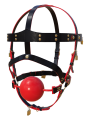
ball gag
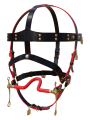
bit
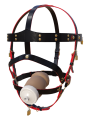
cock
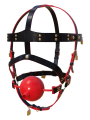
holed ball
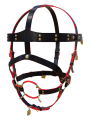
ring gag


Since the object is not rigged you can easily adjust the gags to your head by editing the object.
If you use the smart leash holder available from the [tools] button from leash menu, you can make the user following you when leashed even through TP. As soon as the distance between the leash holder and the wearer is greater than 2 times the leash distance a TP is send to the user. If the leash holder is not detected in the same region, a leash timeout is triggered after 300s and the user will be unleashed.

❓ HELP ❓ – Streams the help into the chat window.
❌ BACK ❌ – Move back to the previous menu.
⏏ EXIT ⏏ – Close the actual menu and release the menu access to anyone.
tools – Get the smart leash holder.
leash ✅ – Grab the leash in your hand (✅=leash to person active).
post ✅ – Leash to an object (✅=leash to post active).
length Ym – Sub-menu to select the leash length (Y=actual leash length).
unleash – Disconnect the leash from your hand or post.
yank – Yank the leash to make the user moving up to the leash target the distance is less than 1m.
type [c or r] – Select leash type chain (c) or rope (r).
public ✅/❌ – When enabled, anyone can use the leash even if the public access is disabled. You can't rip the leash from someone already holding it!

❓ HELP ❓ – Streams the help into the chat window.
❌ BACK ❌ – Move back to the previous menu.
⏏ EXIT ⏏ – Close the actual menu and release the menu access to anyone.
mask ❌ – The view is clear, and no mask (overlay) is applied on the display. Click me to enter the sub-menu.
mask ✅ – A mask (overlay) is applied on the display to restrict the view. Click me to enter the sub-menu.
env ❌ – The environment is not forced; the user can toggle daytime and environment settings. Click me to enter sub-menu.
env ✅ – The environment is forced; the user cannot toggle daytime and environment settings. Click me to enter sub-menu.
clear ✅ - Reset all mask & environment settings back to default values. ✔means the settings are on default values.
The list of available masks is variable and build from the maskenv notecard and those that are manually added from the add menu. In addition the auto setting will force the user to get a mask depending on the shown accessories, the strap in texture and the color.

❓ HELP ❓ – Streams the help into the chat window.
❌ BACK ❌ – Move back to the previous menu.
add – Add a custom mask to the list. Format is <texture_uuid>,<name>[,<color_name>]. Name length is limited to 8 letters and must be unique. Color is optional but the name must be present in the internal memory.
delete – Delete a custom mask from the list if they are.
transparency – Set the transparency value of the mask.
color – Set the color of the mask.
none ✅ – Remove the actual mask from the user’s view. ✅ means there is no mask active.
<list of masks>… – List of available masks. The list is built from the textures present in the ‘overlay’ notecard, the one manually added from the menu and optionally auto. auto means the mask is sync to the object style.
Examples of auto masks:
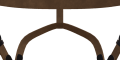
leather black

latex red strap & lashes
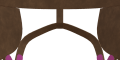
leather pink strap & blinders
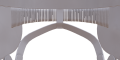
latex white strap & lashes & blinders


Format is <texture_uuid>,<name>[,<color_name>]. Name length is limited to 8 letters and must be unique. Color is optional and can be: amethyst, azure, black, blood, blue, copper, D.green, F.pink, gold, indigo, L.red, L.yellow, lime, metal, navy, orange, P.pink, plum, purple, red, slate, silver, steel, yellow, white, custom.A or custom.B
Example: 004dd4ed-b5fe-3b36-cf6d-8b97024473c6,2Bholes,black for a black mask with the 2 big holes.

Select the mask you want to remove from the list, you can only delete those which has been added manually.
You can adjust the transparency of the mask.

❌ BACK ❌ – Move back to the previous menu.
0% – Make the mask opaque.
100% – Make the mask transparent.
-10% – Reduce the transparency by 10%.
50% – Make the mask half transparent.
+10% – Increase the transparency by 10%.
You can change the base color of the mask to adjust it to your liking, in addition you can also make the color cycling. Best result only one white based mask.
page 1/4
page 2/4
page 3/4
page 4/4


❌ BACK ❌ – Move back to the previous menu.
⏪ - Move back to the previous page.
⏩ - Move forward to the next page.
❓ HELP ❓ – Streams the help into the chat window.
D.green, F.pink, L.red, L,yellow, P.pink, amethyst, azure, black, blood, blue, copper, custom.A, custom.B, gold, indigo,lime, metal, navy, orange, plum, purple, red, silver, slate, steel, white, yellow – Select the color preset for the mask.
RGB.A, RGB.B – Enter the new value for custom.A or custom.B color. Example <123/123/123>
cycle ❌ – No color cycling.
cycle ✅ – Mask color is cycling to randoms values. Every defined time a new color is randomly selected and the mask change to the next value with gradient.
time – Enter a new cycle time for color change.
The list of available environments presets is variable and build from the maskenv notecard and those that are manually added from the add menu.
page 1/5
page 2/5
page 3/5
page 4/5
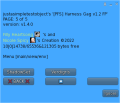
page 5/5


If your settings folder is not populated with environnement settings, the final result may differ depending on the viewer you are using! Best copy all the sets from your Librairy\Environnements\Skies\ to your Inventory\settings\.
❌ BACK ❌ – Move back to the previous menu.
❓ HELP ❓ – Streams the help into the chat window.
add - Add a custom environnement setting to the set, format is name (8 chars max) no space no punctuation. In case of EEP be sure the setting is present in the user inventory, see folder 'settings'.
delete - Remove a custom environment setting from the list if they are.
none ✅ - No environnement preset active.
default, Neutral, Midnight, Sunrise, A-3AM, A-6AM, A-9AM, Midday, A-3PM, A-6PM, A-9PM, Night,80's Wave, Barcelona, Blizzard, Blue Midday, Bristol, CalWL, Coastal Afternoon, Coastal Sunset, Desert Sunset, Dusty, Fine Day, foggy, Funky Funky Funky, gelatto,Ghost, PaperSnow, Pinkpurple, Pirate, Purple, Purplebluenight, Verdigris, ShadowSet - The user is unable to change the viewer environment settings and is forced to one of the listed. Preset can be EEP settings if the user folders are previously setup.
Examples of environment settings.
default
Neutral
Midnight
Sunrise
A-3AM
A-6AM
A-9AM
Midday
A-3PM
A-6PM
A-9PM
Night
80's Wave
Barcelona
Blizzard
Blue Midday
Bristol
CalWL
Coastal Afternoon
Coastal Sunset
Desert Sunset
Dusty
Fine Day
foggy
Funky Funky Funky
gelatto
Ghost
PaperSnow
Pinkpurple
Pirate
Purple
Purplebluenight
Verdigris
ShadowSet


Example: Bristol for a dark environment setting.
2.8.2.2 Setup environment folder
How to correctly setup your inventory from the environment library.

From this menu you can apply some vision restrictions.

❌ BACK ❌ – Move back to the previous menu.
❓ HELP ❓ – Streams the help into the chat window.
⏏ EXIT ⏏ – Close the actual menu and release the menu access to anyone.
ML ✅ - Mouselook is enabled and the user's camera is forced to the first-view.
lock ✅ - prevents the user from unlocking the camera from the avatar, meaning that the user cannot use Alt to focus nor orbit the camera around the avatar. While the camera is locked, the sim forces it to stay in a line of sight from the avatar.
limit ❌ - no camera limit range is active, click for options.
limit ✅ - a camera limit range is active, click for options.
focus ❌ - no focus target active, click for options.
focus ✅ - a focus target is active, click for options.
clear ✅ - all restrictions are cleared and reseted to defaults values.
You can enable a limit restriction to the user to not move the camera outside a range.

❌ BACK ❌ – Move back to the previous menu.
❓ HELP ❓ – Streams the help into the chat window.
limit ✅ - prevents the user from moving the camera outside the defined range from the avatar, either with the mouse wheel or when focusing with the Alt key.
+1m, +2m, +5m, +10m – increase the camera limit range of the selected value, maximum is 96m.
-1m, -2m, -5m, -10m – decrease the camera limit range of the selected value, minimum is 1m.
default – set the camera limit range to the default value of 3m.
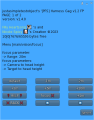
page 1/2
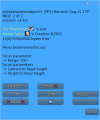
page 2/2


❌ BACK ❌ – Move back to the previous menu.
⏪ - Move back to the previous page.
⏩ - Move forward to the next page.
❓ HELP ❓ – Streams the help into the chat window.
focus ✅ - If the keyholder is present and inside the defined focus range, the user is forced to turn toward the keyholder and the camera will focus one of the selected target, the height of the camera can be forced with myEyes. If the user sit on an object, or the keyholder is off sim, or if the keyholder is outside the focus range, the focus is replaced by camera limit of 3.0m. Be aware that ML is not allowed, if the user decide to roll into ML position an RLV command will be triggered to force to leave ML. In case ML setting is ✅ the user will be toggled from ML to forced camera and vice versa to keep the feeling of the special experience.
+1m, +2m, +5m, +10m - increase the keyholder detection range within the user is forced to focus toward the keyholder, maximum is 96m.
-1m, -2m, -5m, -10m - decrease the keyholder detection range within the user is forced to focus toward the keyholder, minimum is 1m.
default - set the focus range to the default value of 20m.
myEyes ⇧,⇨,⇩ - Select the height of the user's camera, where the user is looking from (head, half height, feet) when focus is active.
target ⇧,⇨,⇩ - Select the height of the user's camera target, where the user is looking at (head, butt height, feet) when focus is active.
show ✅ - If the parcel allows to rez, this function shows inworld the position of the user's camera and where he is looking at. You can use it to adjust the positions of the position where the user is looking from and the position where the user is forced to look at. Disabled if the keyholder vanish or the user sit on an obkect.
Example of the show feature.

In the example here, the user is forced to look at the feet of the keyholder. Name with 🎯 is the looking at and name with 👁 is the looking from.
Texture & color setup is only done over the style menu by both user and keyholder. The Harness Gag can have a leather look or Latexlook. You can color the whole object using a preset or select every part and apply its own material or color.

❌ BACK ❌ – Move back to the previous menu.
❓ HELP ❓ – Streams the help into the chat window.
⏏ EXIT ⏏ – Close the actual menu and release the menu access to anyone.
option - Adjust the Harness Gag options.
preset - Select a full preset for the entire harness gag.
select - Adjust individuals prims to the wished looking.
resize - Resize individual parts.
logo - Select the logo to show on the tag.
visible - Show/hide the harness gag accessories.

❌ BACK ❌ – Move back to the previous menu.
❓ HELP ❓ – Streams the help into the chat window.
G.strap - Toggle the ball gag & holed gag strap from rubber to fabric and vice versa.
no.Mesh ✅ - Enable the open mouth animation for the SL system head.
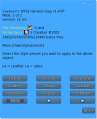
page 1/2
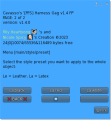
page 2/2


❌ BACK ❌ – Move back to the previous menu.
Le.black, Le.grey, Le.beige, Le.white, Le.blue, Le.lblue, Le.pink, Le.red, Le.yellow, La.black, La.red, La.white - Select one of the leather (Le) or Latex (La) preset.
If you want to texture or color a part of the harness gag you can do it by selecting the part you want to alter and than select what do you want to change.
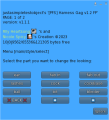
page 1/2
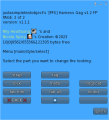
page 2/2


❌ BACK ❌ – Move back to the previous menu.
⏪ - Move back to the previous page.
⏩ - Move forward to the next page.
ball, bit, blinder, lashes, cock, cockBase, ear, fab in, fab out, fab trim, holed, lock, metal, ringCoat, strap, tag - Select the part to alter.
When the part you want to alter is selected another menu will ask you what to do.

❌ BACK ❌ – Move back to the previous menu.
color - Submenu to change the color.
material - Submenu to change the material.
rgb2PBR ✅ - Convert the linear RGB to sRGB colorspace for PBR faces.
noPBR - Remove the PBR material from the selected part and switch it back to leagacy.
Select the color you want to apply on the selected part, you can also change the custom A & B color to your liking.
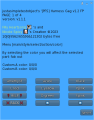
page 1/4
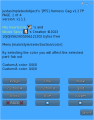
page 2/4
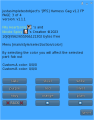
page 3/4
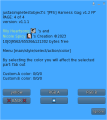
page 4/4


❌ BACK ❌ – Move back to the previous menu.
⏪ - Move back to the previous page.
⏩ - Move forward to the next page.
❓ HELP ❓ – Streams the help into the chat window.
D.green, F.pink, L.red, L,yellow, P.pink, amethyst, azure, black, blood, blue, copper, custom.A, custom.B, gold, indigo,lime, metal, navy, orange, plum, purple, red, silver, slate, steel, white, yellow – Select the color preset for the mask.
RGB.A, RGB.B – Enter the new value for custom.A or custom.B color. Example <123/123/123>
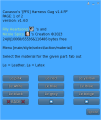
page 1/2
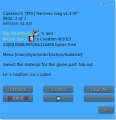
page 2/2


❌ BACK ❌ – Move back to the previous menu.
Le.black, Le.grey, Le.beige, Le.white, Le.blue, Le.lblue, Le.pink, Le.red, Le.yellow, La.black, La.red, La.white - Select one of the leather material.
You can select the harness gag accessories to be shown or hiden.

❌ BACK ❌ – Move back to the previous menu.
tag - Show/hide the tag.
lashes - Show/hide the lashes.
ear - Show/hide the ears.
blind - Show/hide the blinders.
You can select up to 4 accessories to be shown or not.
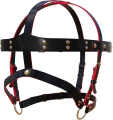
none
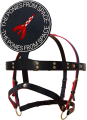
tag
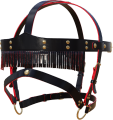
lashes
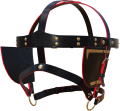
ears
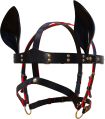
blinders
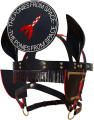
all


User or keyholder can resize and adjust the harness gag to have a better fitting to the head. To help you, the selected prim will be turned full bright during a time, if you don't see a prim you can switch to the hiden prim mode with ctrl+alt+T. Be aware about the orientaion of the axes (see below)
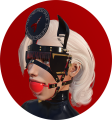
selected prim is turned bright
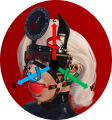
harness gag's axes


You can move the selected prim with the given step.

❌ BACK ❌ – Move back to the previous menu.
⏪ - Previous prim.
⏩ - Next prim.
Y+ - Move the prim left.
Z- - Move the prim down.
Y- - Move the prim right.
[move] - Toggle to next menu.
step - Change move step.
X+ - Move the prim front.
Z+ - Move the prim up.
X- - Move the prim back.
You can increase the size of the prim with the given step.

❌ BACK ❌ – Move back to the previous menu.
⏪ - Previous prim.
⏩ - Next prim.
Y<< - Pull the prim right.
Z↓↓ - Pull the prim down.
Y>> - Pull the prim left.
bSides ✅ - Stretch both side mode.
[bigger] - Toggle to next menu.
step - Change size step.
X<< - Pull the prim back.
Z↑↑ - Pull the prim up.
X>> - Pull the prim front.
You can decrease the size of the prim with the given step.

❌ BACK ❌ – Move back to the previous menu.
⏪ - Previous prim.
⏩ - Next prim.
Y>> - Shrink the prim from the right side.
Z↑↑ - Shrink the prim from the bottom side.
Y<< - Shrink the prim from the left side.
bSides ✅ - Shrink both side mode.
[smaller] - Toggle to next menu.
step - Change size step.
X>> - Shrink the prim from the back side.
Z↓↓ - Shrink the prim from the top side.
X<< - Shrink the prim from the front side.
You can rotate the prim with the given step.

❌ BACK ❌ – Move back to the previous menu.
⏪ - Previous prim.
⏩ - Next prim.
Y↻ - Rotate the prim around Y+ axe.
Z↺ - Rotate the prim around Z+ axe.
Y↺ - Rotate the prim around Y- axe.
[rotation] - Toggle to next menu.
step - Change rotation step.
X↻ - Rotate the prim around X+ axe.
Z↻ - Rotate the prim around Z- axe.
X↺ - Rotate the prim around X- axe.
You can scale up or down the prim with the given factor.

❌ BACK ❌ – Move back to the previous menu.
⏪ - Previous prim.
⏩ - Next prim.
prim- - Scale down the selected prim with the given scale factor.
all- - Scale down the whole object with the given scale factor.
[scale] - Toggle to next menu.
step - Change scale factor.
prim+ - Scale up the selected prim with the given scale factor.
all+ - Scale up the whole object with the given scale factor.
Only the user can restore the size and position to default or to rez.

❌ BACK ❌ – Move back to the previous menu.
⏪ - Previous prim.
⏩ - Next prim.
default - Restore the size and position of entire object to the default one.
@rez - Restore the size and position of entire objecy to the values at your last rez.
mirror - Apply mirror to the symmetric object of the selected one.
❓ HELP ❓ – Streams the help into the chat window.
[special] - Toggle to next menu.
undo - Undo the last action.
You can select the logo to be shown on the tag if that last one is visible. The list of logos textures is build from the logo notecard and the one that are manually added using the add menu. You can also download the UV file to make your own logo.
page 1/3
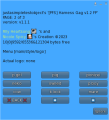
page 2/3
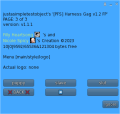
page 3/3


❌ BACK ❌ – Move back to the previous menu.
⏪ - Move back to the previous page.
⏩ - Move forward to the next page.
❓ HELP ❓ – Streams the help into the chat window.
add - Add a custom logo to the list. Format is <UUID of the texture>,<unique name>.
delete - Delete a custom logo from the list if they are.
get UV - Get the UV map to make your own logo.
none - Hide the actual logo.
CMFS, PFS, bee, bunny, cow, k.lock, mare, p.girl, pig, ponizei, puppy, slave, slut - Select the logo to be shown on the tag if visible.
Example of the tag's logos
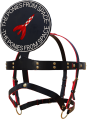
PFS
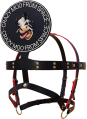
CMFS
Bee
Bunny
Cow
Keep locked
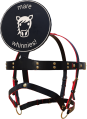
Mare
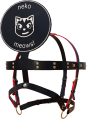
Neko
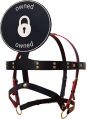
Owned
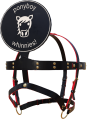
Ponyboy
Ponygirl
Pig
Ponizei
Puppy
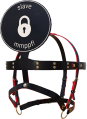
Slave
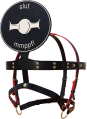
Slut


3. Options
3.1 Access plugins
You can add access script (public or for PFS staff), for this you have to rez the box '[PFS] Harness gag addons v1 (REZ me)' on the floor and unpack it into your inventory. Than rez the Harness gag on the floor too and drag & drop from your inventory into the content tab of the harness gag the access script you want to add. You can add both to have public and PFS access.

3.2 Smart leash holder
You can use any leash holder to leash the harness gag as long the name contains one of the word: holder, handle or leash. You can also use the integrated smart leash holder (you can get it from the leash menu) and have additionnal feature like follow TP and easy force TP from anywhere.
![[PFS] smart leash holder](/wiki/File:HG_leash_holder.png)
The smart leash holder automatically register and unregister the leash you grab, release or get released by timeout. For more details and options you can touch it to get a menu.

exit – Close the menu.
auto TP [✔] - Auto TP is enable and leash anyone listed above if the distance is greatter than 2 times the leash length.
auto TP [✘] - Auto TP is disabled but you can still force TP using the shortcuts (see get tools).
verbose [✔] - The smart leash holder becomes very chatty, mainyl for debug purpose.
verbose [✘] - The smart leash holder spams you as less than possible.
send TP - Send a force TP to anyone listed above.
get tools - Offers you a set of gestures to have keyboard shortcuts for menu & force TP.
![[PFS] smart leash tools](/wiki/File:HG_leash_gestures.png)
The smart leash holder is the best tool to keep your favorite pet close to you in any conditions!.

3.3 Truekey
If you get in big troubles, you have no access plugins, the only way to get free without cheating out is to use a Truekey you previously have setted up before to get locked. Truekey works with a password and it can't be changed or read when the harness gag is locked. The Truekey password is also resetted to a random value at any full reset. You cannot use the Truekey on yourself but you can ask anyone to use it as long the person knows the password!
![[PFS] Truekey](/wiki/File:HG_truekey2.png)
To get the Truekey menu the user have to ckic it longer than 2s! You can also get it by command line /7nitruekey if your username starts with ni.
3.3.1 Setup a new Truekey
The user has to setup the Truekey before to use it, functions available from the harness gag tools menu while unlocked and key back.

The user can here see the actual Truekey password and change it with set pw. User can also get a new Truekey with Truekay and than can give it away. Keep in mind the Truekey is reseted on transfert and you have to give both the Truekey and password to the person to be able to use it the day you need it. There is no way to get the actual password or change it when the harness gag is locked!
3.3.2 Add password to Truekey
A Truekey can keep in memory more than one password, the limit is the free memory available to store more. The next user of the Truekey have to adds the harness gag users's password to be able to use it.

Click add pw to add a new password to the list. Here in our example the password 564641 has been saved. You can also remove password with remp pw or reset the Truekey to its initial state with reset.
3.3.3 Use a Truekey
To use a Truekey to unlock the harness gag you have first to access the harness gag user's tools menu.

As you can see in the example above here you cannot see the Truekey password but you can use key. Click first use key and than simple touch your Truekkey you are are already wearing and has been already configured (see above if not).
If you success you should get in the chat window [TrueKey] key grabbed and the harness gag user's main menu should pop!
4. Fix your cheeks
With some shapes you may have a collision between the harness gag and your cheeks. Since the harness gag isn't rigged you have to adjust your shape.

To edit your shape move your mouse over your tag, right click your mouse button.

Select appearance and click it with the left mouse button.

From the tab head you can shift the Upper Cheeks cursor to adjust it under the strap.

When you are done don't forget to click save to save it to the actual shape or a new one with new name. During the editing, if you are not happy of the result, you can click Undo Changes and you will get back all your actual shape settings.
5. Update your adjusted one
Auto update with a script would turn the harness gag into a no copy object and we don't want that. To help you to update your actual harness gag that you spent lots of time to adjust I will show you how to keep it as it is and update it.
Rez side by side both harness gags on the floor.
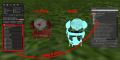
1. Copy everything from the new content into the temp folder
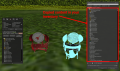
2. All the content should be present in your temp folder
3. Delete everything in the actual harness gag content (yes do it!!!)
4. Your actuel harness gag's content should be empty
5. copy everything from the temp folder into the actual harness gag's content
6. All the temp folder should be present in your actual harness gag's content
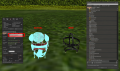
7. Update the object name with the new version number
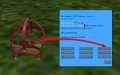
8. launch a Reset Link Set Data (RLSD) from the menu main/tools
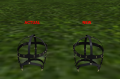
9. You are done, grab your actual one, delete the new one and the temp folder


